How to Use SponsorBlock on iPhone and iPad
If you've ever sat through "this video is brought to you by…" for the third time in one video, you already understand why SponsorBlock exists. It's a community project where viewers mark the exact start and end of the parts people tend to skip — sponsor reads, intros, outros, recaps — so that everyone after them can jump past those parts automatically.
In a desktop browser, you install the SponsorBlock extension and you're done. In the YouTube app on iPhone and iPad, there's no such option — and that's what this guide is about.
What SponsorBlock can skip
SponsorBlock isn't just for sponsor reads. Segments are organized into categories, and you decide which ones get skipped:
- Sponsor — paid promotions and product placements
- Intro — animated logos and "what's up guys" preambles
- Outro — end cards and credits
- Self-promotion — merch plugs and channel cross-promos
- Interaction reminders — "like and subscribe"
- Preview / recap — "coming up in this video…" and recaps of previous ones
- Non-music sections — talking segments inside music videos
- Filler / tangents — off-topic digressions (for the truly impatient)
The catch on iPhone and iPad
SponsorBlock is distributed mainly as a browser extension, and the official YouTube app has no SponsorBlock support.
Mira closes that gap by building SponsorBlock support directly into a native video player app. There's no extension to install — it's a toggle.
Setting it up in Mira
- Download Mira on your iPhone or iPad. SponsorBlock is offered right in the first-launch setup, with recommended options pre-selected — if you enabled it there, you're already done.
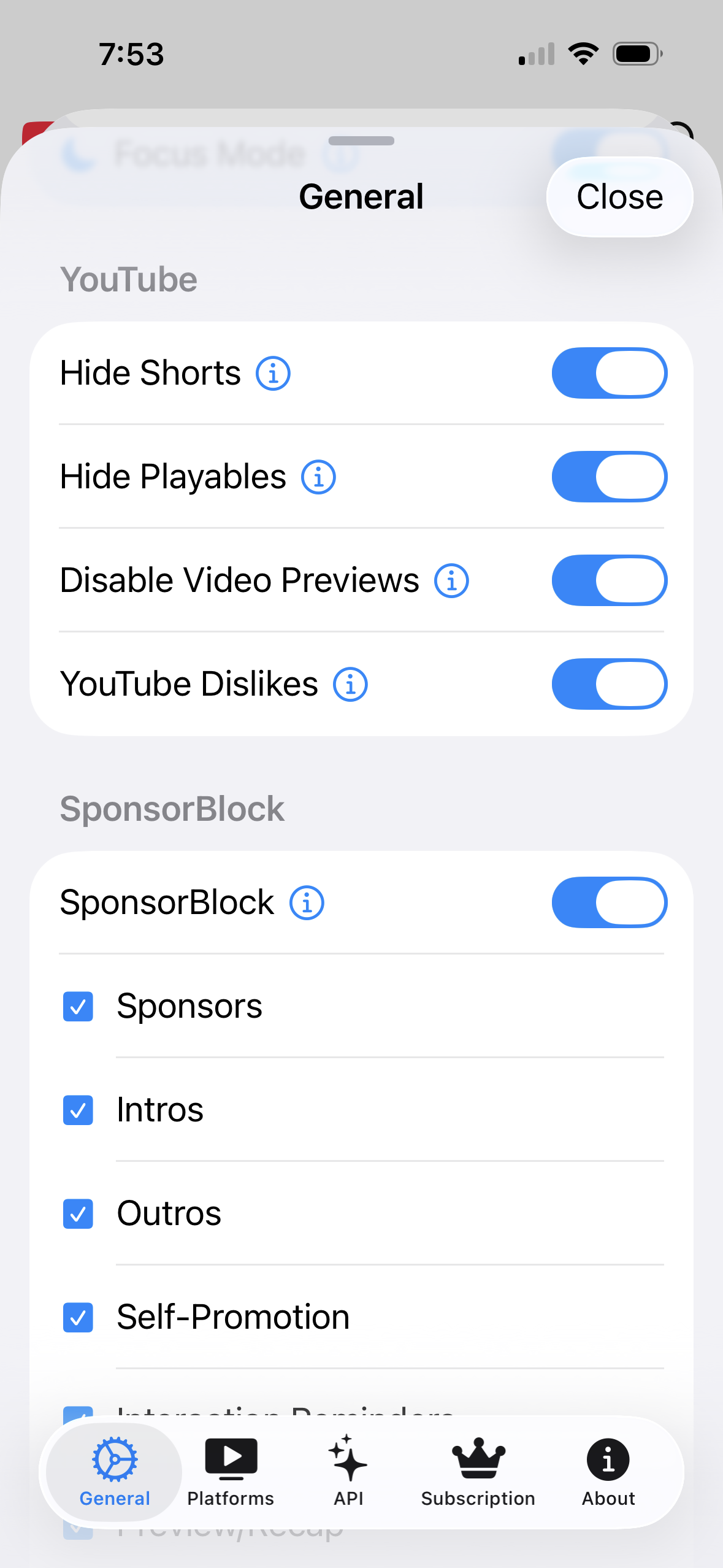
- To adjust it later, open Settings → General → SponsorBlock.
- Turn on the categories you want skipped. Most people start with Sponsor, Intro, and Preview/Recap, and leave Filler off.
- Optionally, enable colored timeline segments — each category gets its own color on the video's progress bar, so you can see what's coming before it gets skipped.
What it looks like in practice
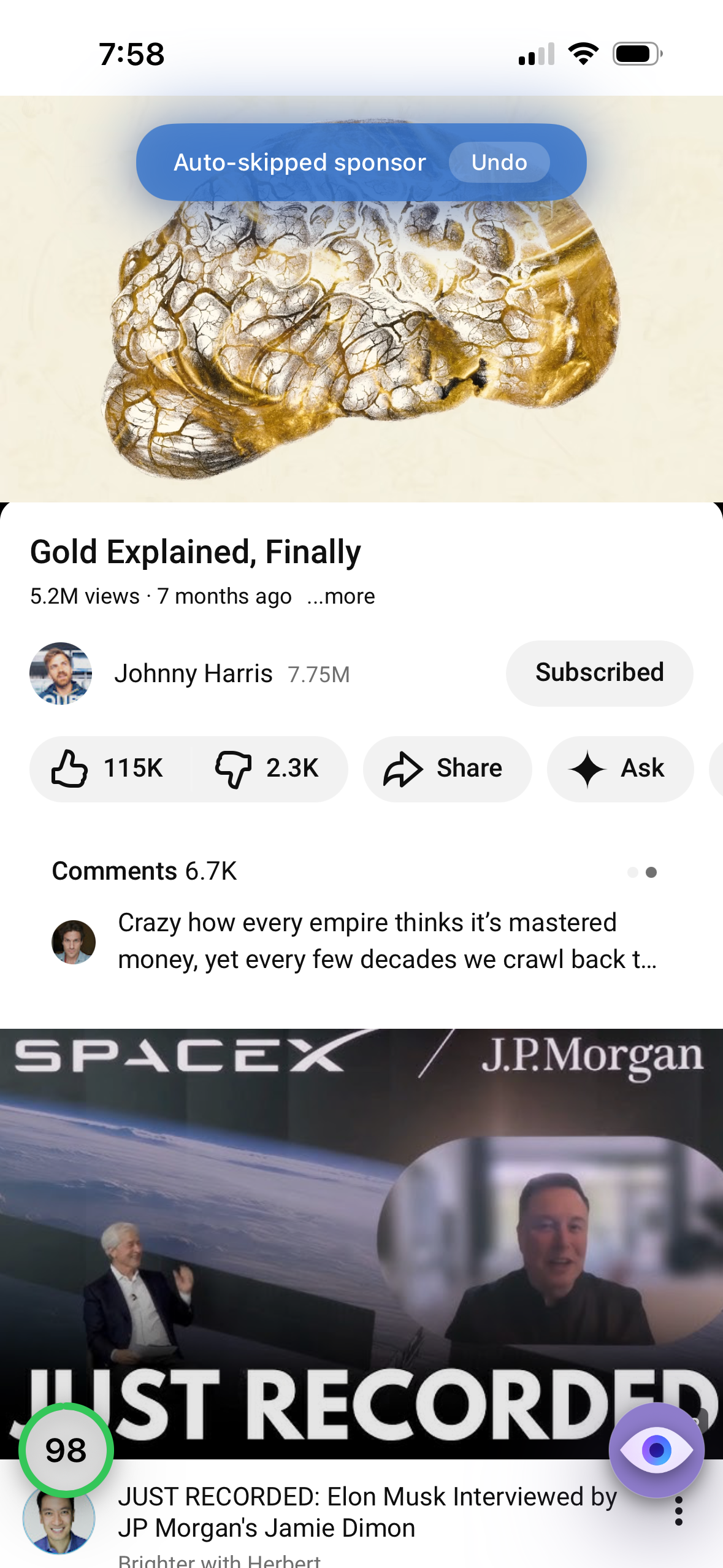
Play any YouTube video and just… watch. When a marked segment arrives, Mira hops over it and shows a small toast telling you what was skipped. If you actually wanted to see that segment, tap Undo on the toast and it jumps back.
Contributing segments back
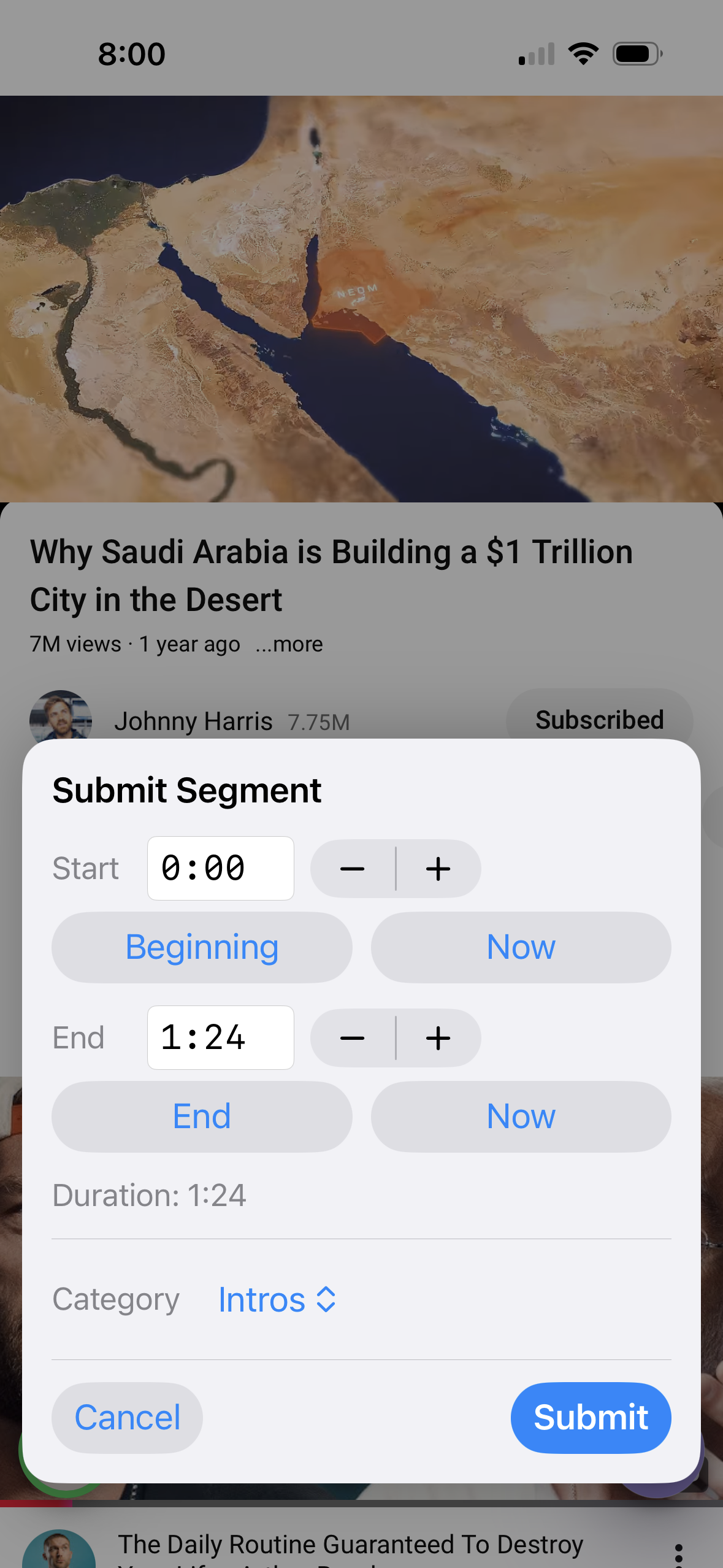
SponsorBlock works because viewers mark segments for each other. If you hit a sponsor read that nobody has marked yet, you can contribute it: open the SponsorBlock control — in the toolbar on iPad, or the tool menu on iPhone — while watching, mark the start and end, choose a category, and submit. The next person who watches that video skips what you marked.
Things to note
- YouTube only. SponsorBlock's community data covers YouTube videos; it doesn't apply to other sites you watch in Mira.
- It's community data. A video uploaded an hour ago, or a very niche video, may not have segments marked yet. (That's what the submit feature is for.)
- Occasional imprecision. Segment boundaries are human-submitted, so once in a while a skip lands a second early or late — the Undo button exists for exactly that.
Mira is a native video player for iPhone, iPad, Mac, and Apple TV that skips sponsors, intros, and other unwanted segments — with searchable transcripts, AI summaries, and synced watch parties.