How to Search Inside a YouTube Video's Transcript (and Jump to the Exact Moment)
You watched a two-hour podcast last week. Somewhere in it, the guest explained exactly the thing you now need — a tool name, a study, a number. You remember it was said; you have no idea when. Your options are scrubbing the timeline at random or re-watching half the episode.
There's a better option: treat the video like a document. Search it.
Where the built-in tools fall short
YouTube does generate transcripts for most videos, and on the desktop website you can open one under a video's description. But it's a long scroll of text — finding one phrase means reading until you spot it. On iPhone and iPad the transcript panel is harder to work with still, and searching within it while you watch is clumsy.
Searching a video in Mira
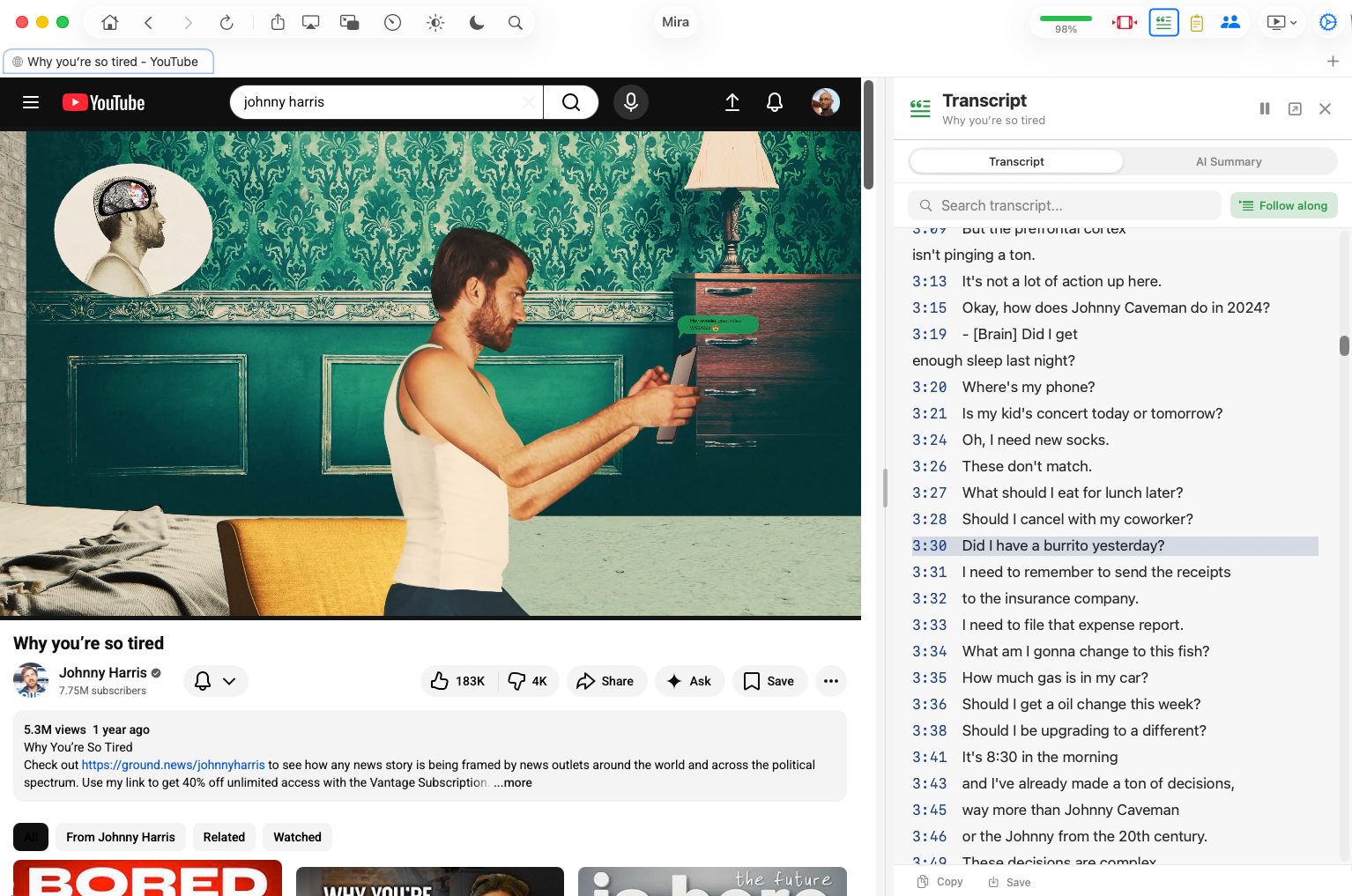
Mira treats the transcript as a first-class panel that sits next to (or under) the video, with an actual search field:
- Open any YouTube video in Mira.
- Open the Transcript & AI control — it's in the toolbar on Mac and iPad, and in the eye-button tool menu on iPhone. Mira fetches the transcript automatically when a video loads, so it's usually ready the moment you open it.
- Type into the search field. Every matching line is highlighted.
- Tap any line — the video jumps straight to that timestamp. That's it: ten seconds from "I know they said it" to hearing them say it.
Reading along with Follow Playback
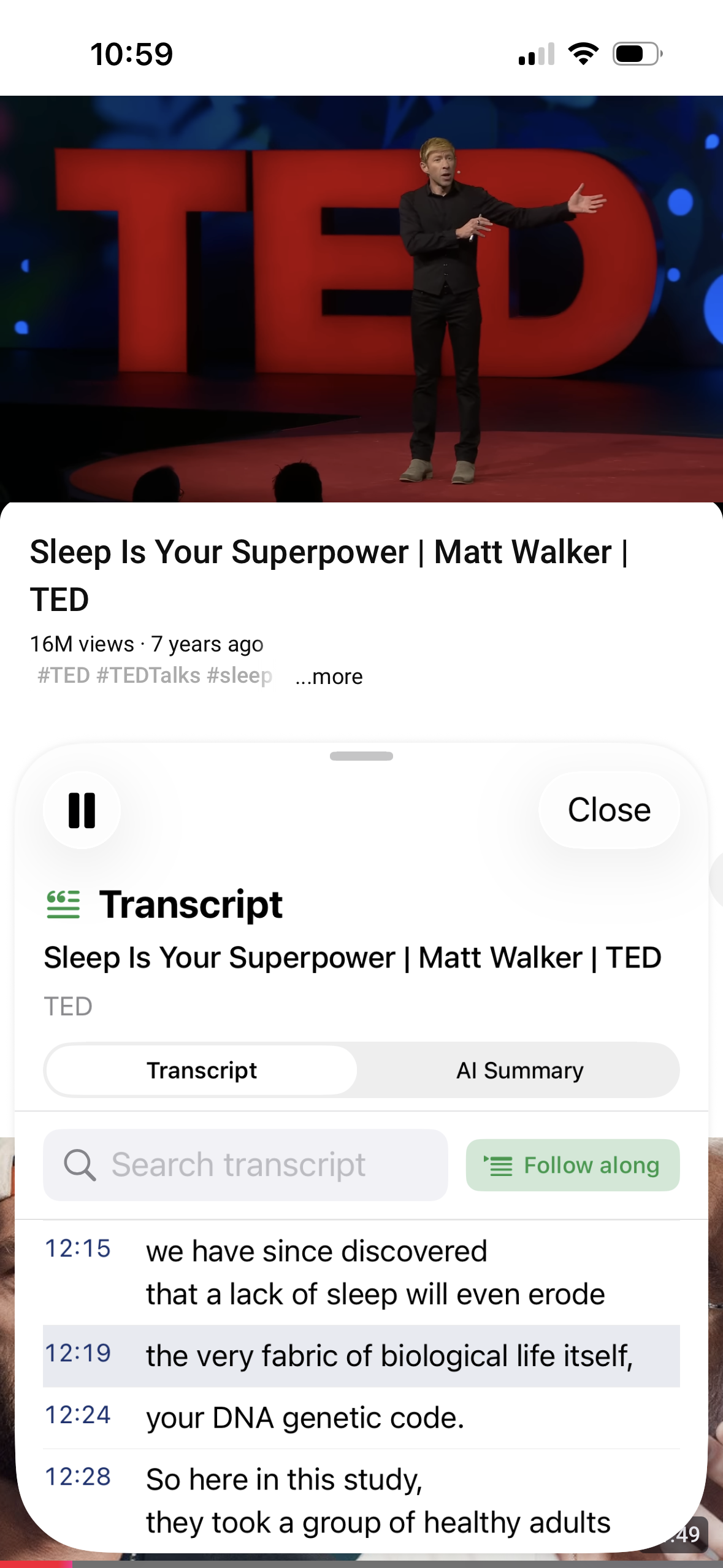
Turn on Follow Playback and the transcript auto-scrolls in sync with the video — useful for lectures, interviews in a language you're still learning, or watching quietly with the volume low. On iPad the panel docks beside the video in landscape; on iPhone it opens as a sheet you can pull up to half or full height; on Mac it can pop out into its own floating window.
From searching to summarizing
Once a video is text, more becomes possible. From the same panel you can switch to the AI tab and ask for a summary, key takeaways, an outline, or follow-up questions about what was said. Mira works with your own Claude, OpenAI, or Grok API key — and if you don't want to set one up, transcripts and search work fully without it.
Things to note
- The video needs captions. Transcripts come from YouTube's own caption data, so a video without captions has no transcript to search.
- VPNs can interfere. Transcript requests often fail when routed through a VPN — if transcripts won't load, try turning it off.
- YouTube only. Transcript search applies to YouTube videos, not to other streaming sites you use in Mira.
Mira is a native video player for iPhone, iPad, Mac, and Apple TV that skips sponsors, intros, and other unwanted segments — with searchable transcripts, AI summaries, and synced watch parties.