How to Ask AI Questions About a YouTube Video
Summaries answer the broad question: what is this video about, and what were the main points? But the question you actually have is often narrower. What did she say about pricing? Which book did he recommend, exactly? Did they ever get around to the obvious counterargument? A summary, by design, compresses — and it may compress away the one detail you came for.
For that, Mira has a chat box. It sits directly under the one-tap summary actions, and it lets you interrogate a video the way you'd quiz a colleague who just watched it.
Summaries and questions are different tools
One-tap summaries — covered in How to Get AI Summaries of Long YouTube Videos — are one-shot: you pick a shape (takeaways, outline, quotes) and get a digest of the whole video. The chat box is a conversation. You can start broad and narrow down, follow a single thread through a long interview, or skip the summary entirely and go straight to the one thing you want to know. Both read the same source: the video's transcript, which Mira fetches automatically when the page loads.
Asking your first question
- Open a YouTube video in Mira.
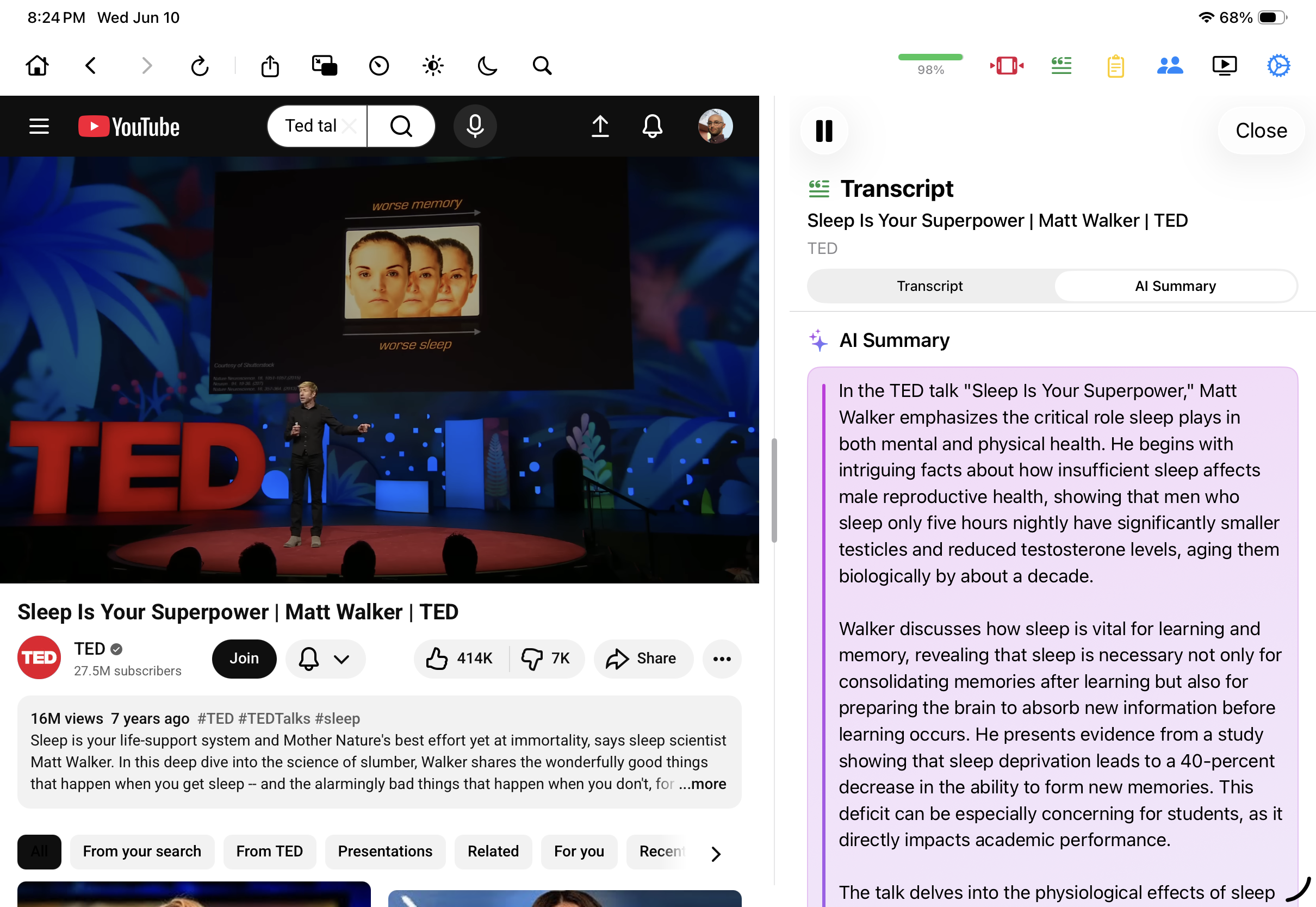
- Open the Transcript & AI control — in the toolbar on Mac and iPad, in the eye-button tool menu on iPhone — and switch to the AI Summary tab.
- Type your question into the chat box below the quick actions.
- Keep going. It's a conversation, so "and what did they conclude?" works as a follow-up without restating everything.
Questions that work well
- "What did they say about ___?" — pulls every mention of one topic out of a two-hour conversation.
- "What tools, books, or people were mentioned?" — recovers recommendations without scrubbing the timeline.
- "What was the argument for ___, and did anyone push back?" — reconstructs the actual shape of a debate.
- "Summarize only the part about ___." — a focused mini-summary of one chapter of the video.
Because the model reads the transcript, its answers are grounded in what was actually said in this video. It isn't a web search — it's a close reading of one source, which is exactly what you want when you're checking what someone claimed on camera.
A workflow that holds up
For long material, a two-step pattern works well: tap Key takeaways to get the map, then use the chat to dig into the one or two points that matter to you. The chat is just as useful after watching — if you saw something last week and need a half-remembered detail today, reopen the video, open the AI tab, and ask. It's a lot faster than re-watching, and more reliable than memory.
There's no preparation step in any of this. Mira fetches the transcript automatically when a video page loads, so any captioned YouTube video you have open is already ready to be questioned — the chat box is just sitting there under the quick actions, waiting for you to get curious.
What you need first
Mira's AI features run on your own account with Claude, OpenAI, or Grok. You add an API key once under Settings → API Integration and tap Test API Connection; the key stays on your device and requests go directly to the provider. The setup — including the billing detail that trips most people up — is covered in Bring Your Own AI. Transcripts themselves work without any key, so you can read and search videos even if you never connect one.
Things to note
- It needs your own AI API key, with billing enabled. The provider account behind your key must have a payment method set up — a key alone returns an error and answers won't generate.
- It only knows what was said. Answers come from the caption-based transcript, so a chart or on-screen text that's never spoken aloud is invisible to it — and a video without captions can't be questioned at all.
- YouTube only. The Q&A flow works on YouTube videos, not on other platforms you've added to Mira.
- Answers are a reading, not a recording. The model paraphrases the transcript and can get a detail wrong. When something matters, open the transcript and find the actual line before you quote it.
Mira is a native video player for iPhone, iPad, Mac, and Apple TV that skips sponsors, intros, and other unwanted segments — with searchable transcripts, AI summaries, and synced watch parties.