How to Get AI Summaries of Long YouTube Videos
A two-hour interview has been sitting in your queue all week. You want what's inside it — the arguments, the names, the recommendations — but you don't have two hours, and watching at higher speed still costs you most of an hour. Some videos earn that much of your time. Most don't, and you can't tell which is which without watching.
Mira offers a shortcut: it turns the video into text, then has an AI model read that text and report back. You get a summary in seconds, in whatever shape suits the video — a handful of takeaways, an outline, the standout quotes — and you can ask questions afterward.
How it works
Every YouTube video with captions has a transcript behind it, and Mira fetches that transcript automatically when a video page loads. The AI features are built on top of it: when you ask for a summary, Mira sends the transcript to an AI provider — your own account with Claude, OpenAI, or Grok — and shows you the response. Because the model reads the actual transcript, the summary reflects what was said in the video, not a guess based on the title and thumbnail.
Getting a summary
- Open a YouTube video in Mira.
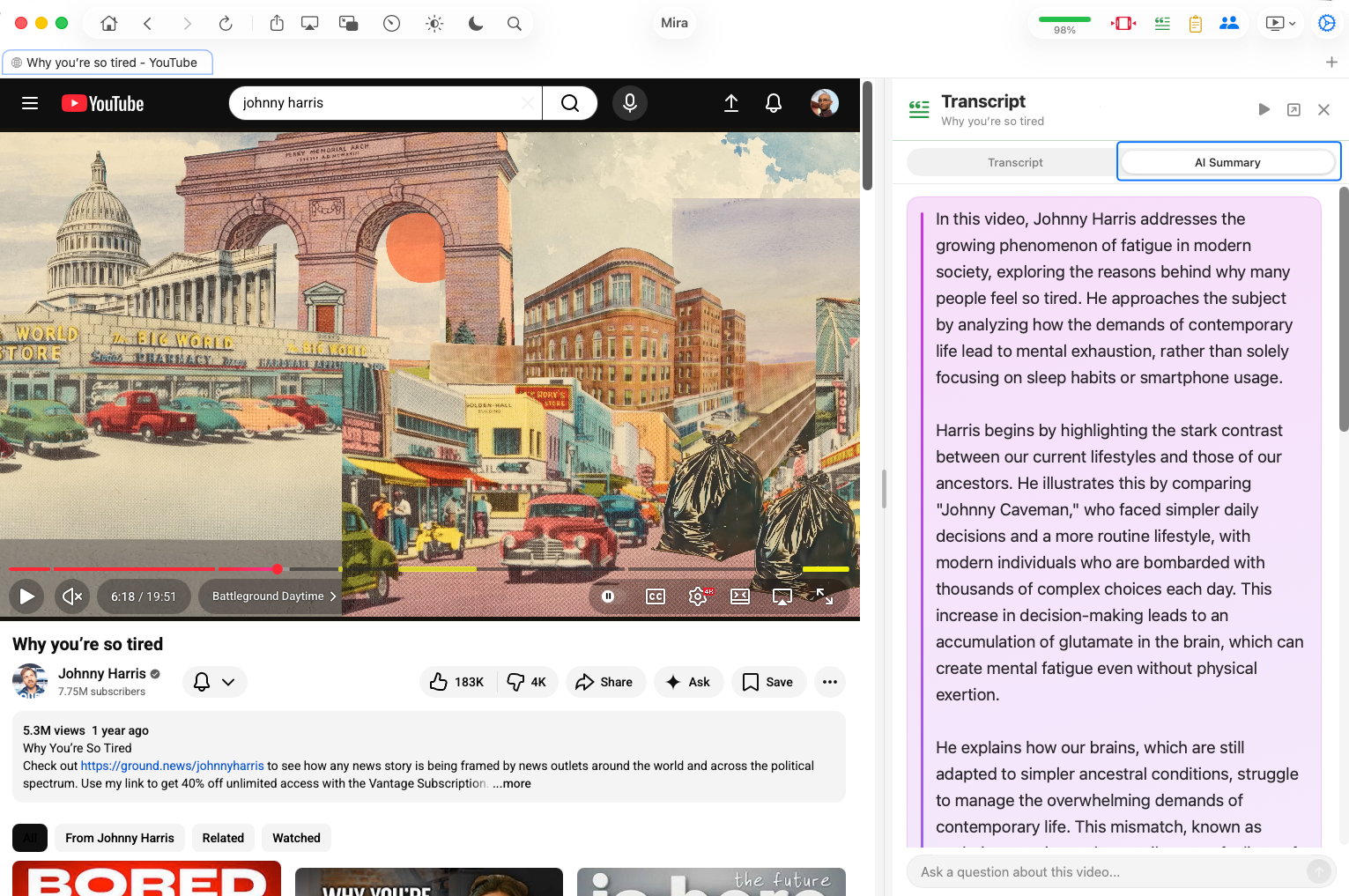
- Open the Transcript & AI control — it's in the toolbar on Mac and iPad, and in the eye-button tool menu on iPhone.
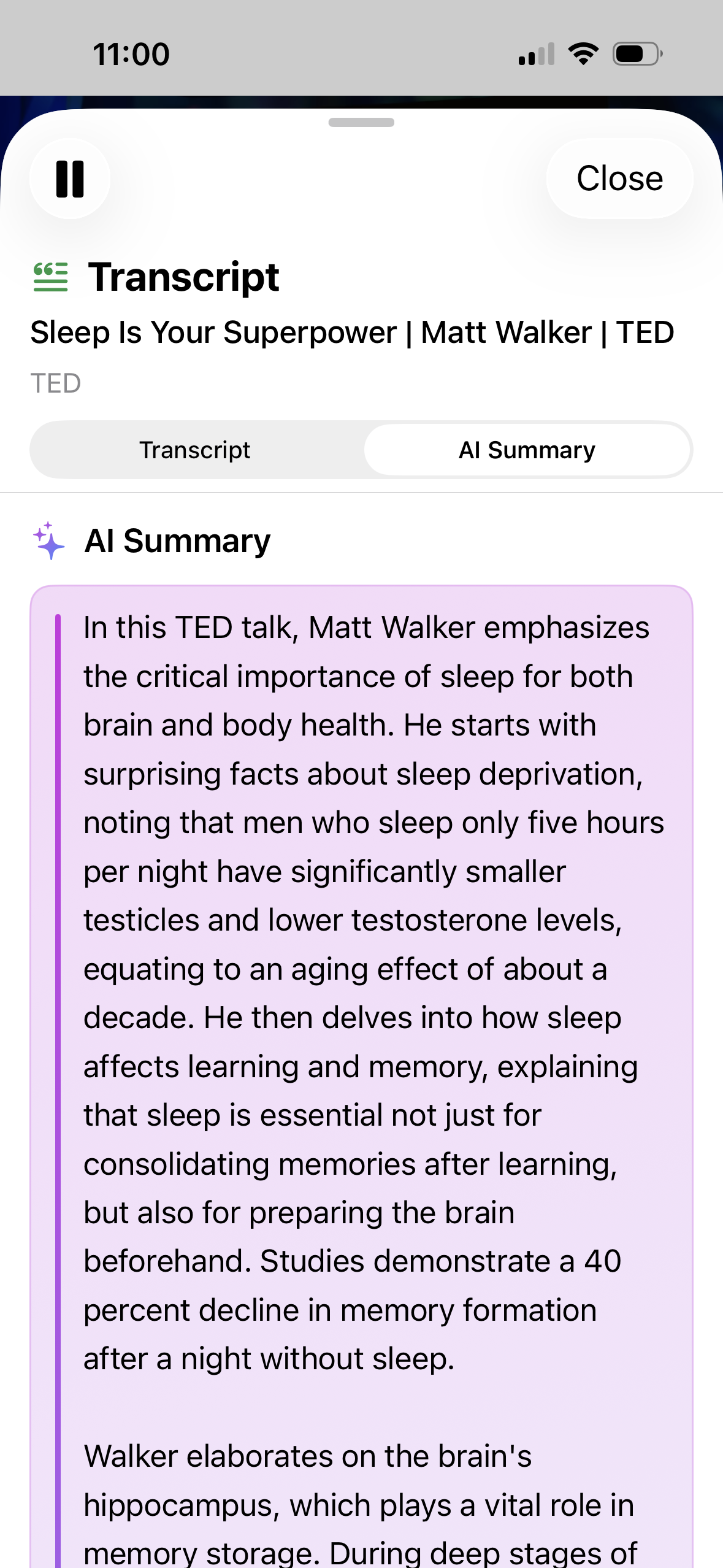
- Switch to the AI Summary tab.
- Tap a quick action. Key takeaways is a good first pick for most videos.
Pick the shape that fits the video
A "summary" means different things for different videos, so Mira gives you several one-tap actions instead of one:
- 15-second summary — the quickest answer to "is this worth my time?"
- Key takeaways — the main points as a scannable list
- Outline — the structure of the video, useful for lectures and long tutorials
- Key quotes — the lines worth saving, in the speaker's own words
- Key terms — the vocabulary and names you'd otherwise have to look up
- Summarize each section — a part-by-part digest for very long videos
- Explain like I'm 12 — the same content, minus the jargon
- Fact-check claims — asks the model to flag claims worth double-checking
For a two-hour podcast, a sensible pattern is: 15-second summary to decide, Key takeaways if you're interested, then Summarize each section if you want the full picture without the full runtime.
You bring the AI
Mira doesn't run its own model or resell anyone else's. Instead, you connect an API key from Claude, OpenAI, or Grok once, under Settings → API Integration, and Mira talks to that provider directly from your device. You choose the provider, you pay the provider's own rates directly, and your key stays on your device. The full setup, including where to get a key from each provider, is covered in Bring Your Own AI.
After the summary
A summary is rarely the end of it. If a takeaway raises a question, type it into the chat box under the quick actions and the AI answers from the same transcript — "what did they say about X" is exactly the kind of thing it's for, and there's a separate guide to asking AI questions about a video. And when you'd rather hear something in the speaker's own voice, you can search the transcript and tap a timestamp to jump straight to that moment.
Things to note
- You need your own AI API key, with billing enabled. Summaries run on your account with Claude, OpenAI, or Grok, and a key alone usually isn't enough — most providers need a payment method set up on the account before calls succeed. Usage is usually inexpensive, but it isn't free.
- The video needs captions. Summaries are generated from the transcript, which comes from YouTube's caption data. No captions means no transcript — and nothing for the AI to read.
- YouTube only. AI summaries work on YouTube videos, not on the other platforms you watch in Mira.
- It's still an AI summary. A model can flatten nuance or skip the aside that mattered most to you. For anything you intend to rely on, jump to the relevant part of the video and confirm it yourself.
Mira is a native video player for iPhone, iPad, Mac, and Apple TV that skips sponsors, intros, and other unwanted segments — with searchable transcripts, AI summaries, and synced watch parties.