Focus Mode: Just You and the Video
You opened YouTube to watch one specific thing. The page, reasonably enough from its point of view, would like you to watch ten things: a feed tuned to your tastes, a column of "up next" suggestions, comments that pull your eyes down mid-video. None of it is sinister — it's just a lot, and it's very good at turning a twelve-minute errand into an evening.
The usual advice is willpower, and willpower loses to a feed at 11 p.m. roughly every time. Focus Mode is Mira's more practical answer: change what the page shows you, and there's nothing to resist. One toggle, and YouTube becomes a place where the video you chose is the only thing on screen.
What Focus Mode hides
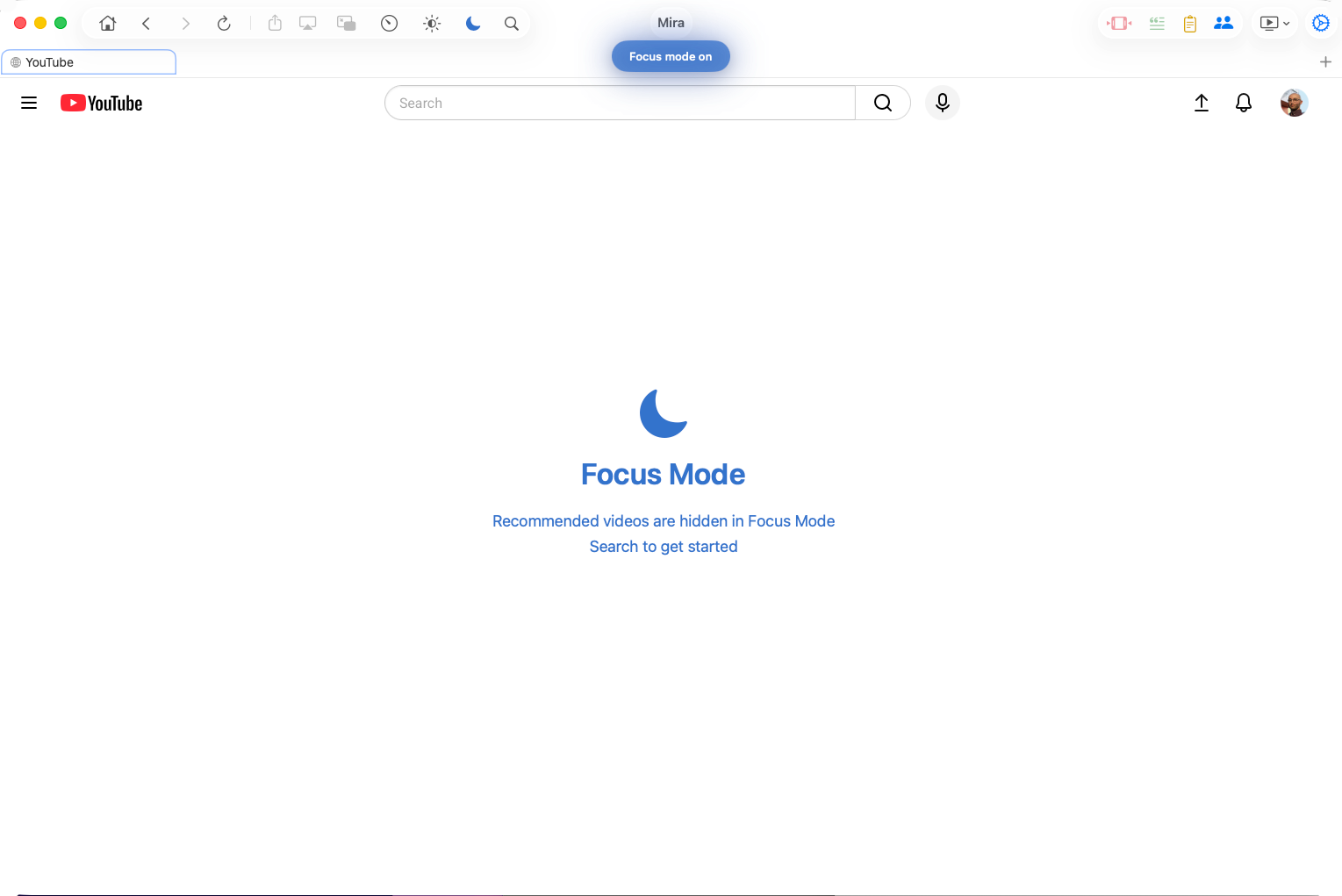
On the homepage, Focus Mode hides the recommended videos, the sidebars, and the feed — leaving a clean page with only the search bar. You search for the thing you came for instead of scrolling through what's being offered.
On a video page, the video keeps playing exactly as normal, but the comments and the recommended videos beside and below it are hidden. When the video ends, there's no wall of thumbnails waiting to catch you.
Notice what's still there: search. Focus Mode isn't about locking yourself out of YouTube — you can find anything you want, whenever you want it. It just asks you to want it first, instead of letting the page decide on your behalf.
Turning it on
- On Mac and iPad, tap the moon icon in the toolbar. It turns blue while Focus Mode is on.
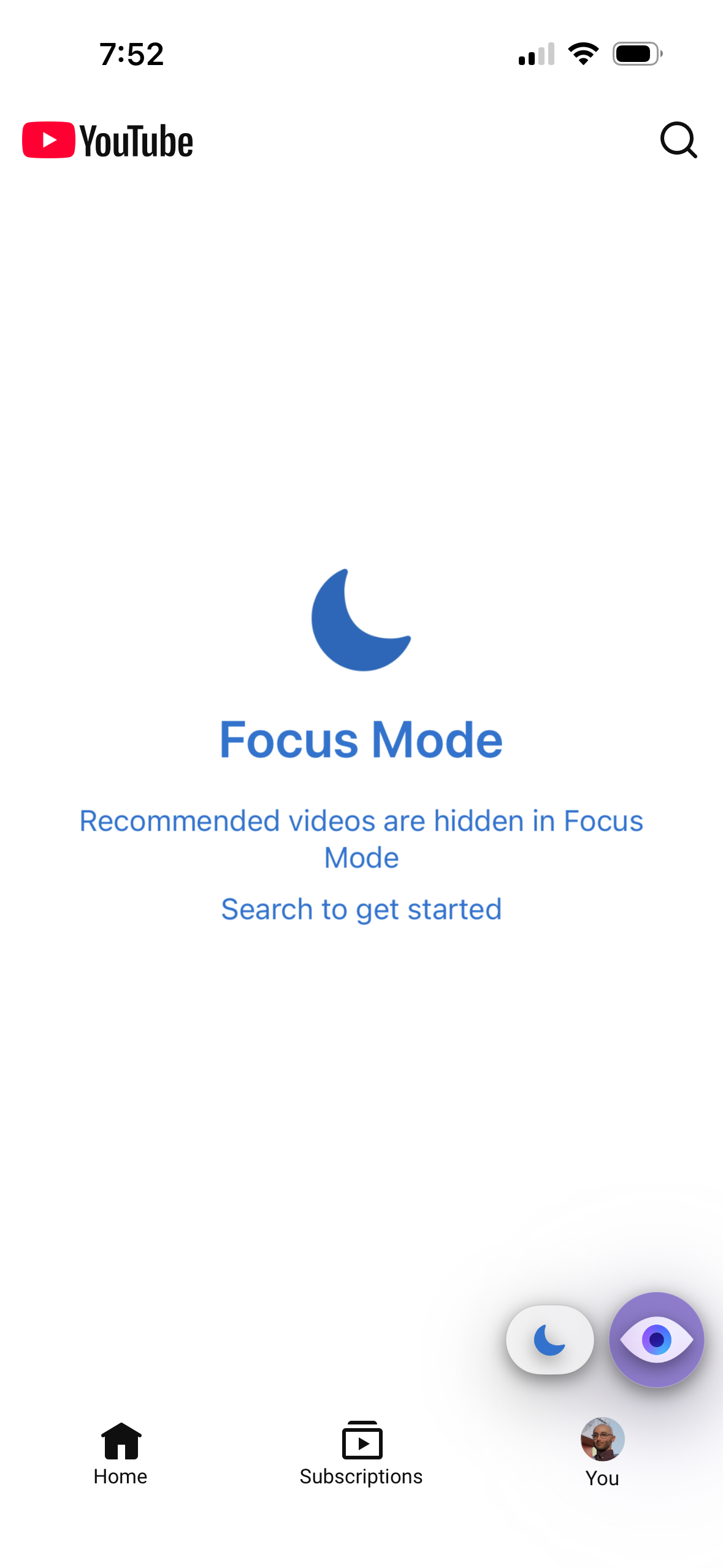
- On iPhone, open the tool menu (the floating eye button) and tap Focus Mode.
- You can also toggle it under Settings → General → YouTube Focus Mode.
It's a toggle, not a lifestyle commitment. Plenty of people leave it on for work-hours and lecture viewing, then switch it off on a lazy Sunday when browsing the feed is the actual plan. Because the control lives in the toolbar rather than buried in settings, switching modes is a single click — and the blue moon tells you at a glance which YouTube you're about to get.
Choose what your homepage shows you
Focus Mode is the big lever. If you'd rather keep the feed but shape it, Mira has gentler, per-element toggles under Settings → General → YouTube:
- Hide Shorts — removes Shorts from the home feed, sidebar, search results, and channel pages.
- Hide Playables — hides YouTube's mini-games.
- Disable Video Previews — stops home-feed thumbnails from silently autoplaying preview clips while you scroll.
Together they let you decide what your homepage shows you, element by element, instead of the all-or-nothing choice. Pair them with set-once defaults like theater mode and best quality and YouTube starts to feel like a room you arranged yourself.
When it earns its keep
Focus Mode shines whenever your viewing is search-driven: a tutorial you need to follow along with, a lecture series, a recipe, the one music video you actually wanted. It's also a quiet gift to before-bed viewing — the video ends, and the page simply… ends with it.
It pairs especially well with Mira's study features. With the feed gone and the transcript panel open beside a lecture, a YouTube video starts behaving less like entertainment and more like a document you can search and navigate. And on iPhone, Focus Mode is one piece of a broader set of calm-by-default choices; a calmer way to watch on iPhone walks through how they fit together.
Things to note
- YouTube only. Focus Mode works on YouTube; it doesn't apply to the other platforms you watch in Mira.
- Comments hide too. If you're a comments person, you'll find yourself toggling Focus Mode off to read them — it's one click, but it's a click.
- Shorts are handled separately. Hiding Shorts is its own toggle (Hide Shorts), not part of Focus Mode.
- It hides the feed; it doesn't retrain it. Turn Focus Mode off and YouTube's recommendations are right where you left them.
Mira is a native video player for iPhone, iPad, Mac, and Apple TV that skips sponsors, intros, and other unwanted segments — with searchable transcripts, AI summaries, and synced watch parties.