How to Read a YouTube Video as Text, with Timestamps
Some videos you don't actually need to watch. The lecture where everything important is spoken, the interview you're playing at midnight while someone sleeps next to you, the tutorial in a language you're still learning — sometimes the useful part of a video is the words, and the useful format is text.
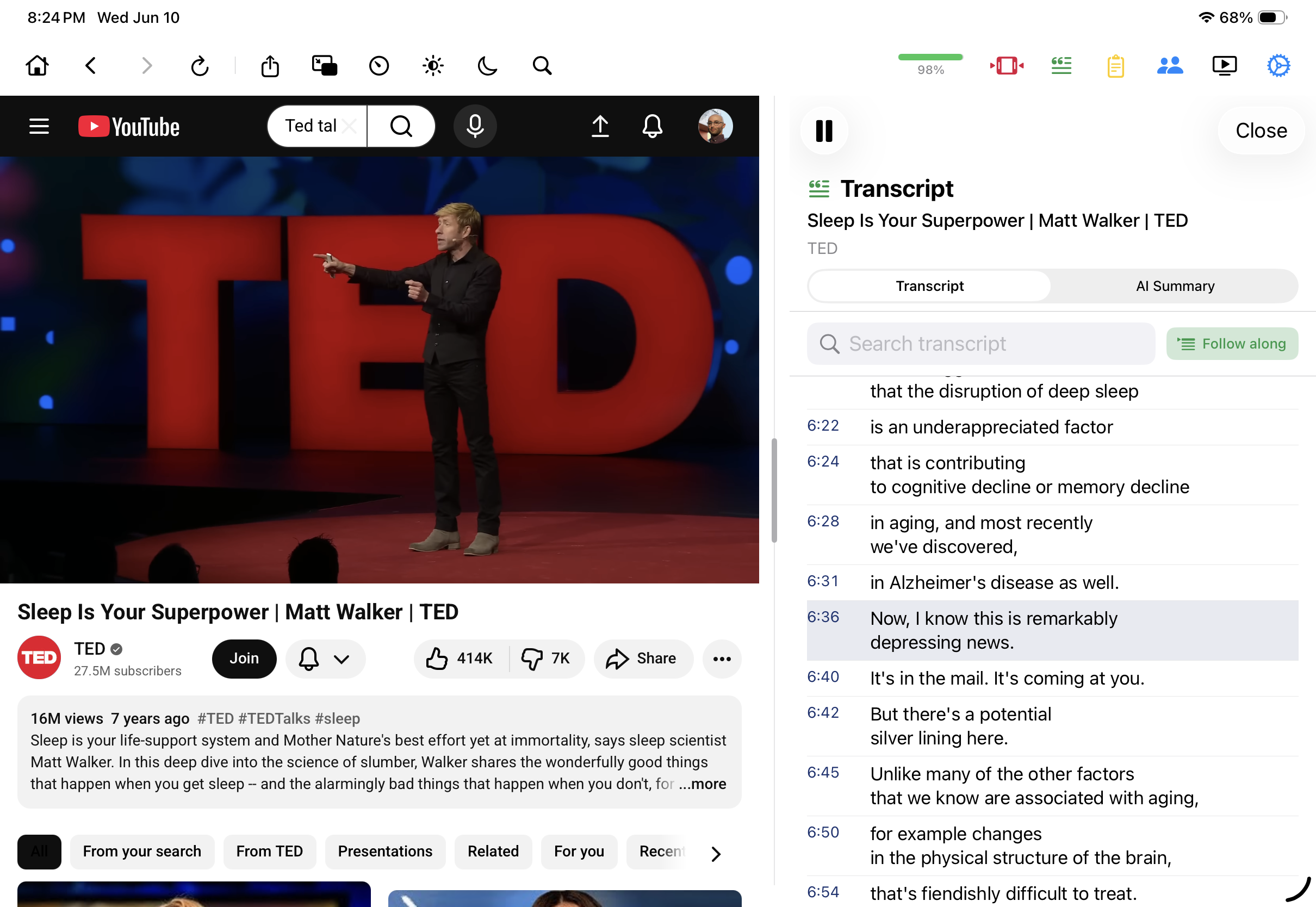
Mira opens any YouTube video's transcript as a readable, timestamped panel right next to the video. This guide is about using that panel as a reading surface — following along, taking notes, watching quietly — rather than as a search box (that angle has its own guide).
Opening the transcript
- Open a YouTube video in Mira.
- Tap the Transcript & AI control — it's in the toolbar on Mac and iPad, and in the eye-button tool menu on iPhone. Mira fetches the transcript automatically when a video page loads, so it's usually ready the moment you open it.
- Read. Every line carries a timestamp, and tapping a line jumps the video to that exact moment — the text and the video stay two views of the same thing.
Follow Playback: the read-along mode
Turn on Follow Playback and the transcript scrolls itself, keeping the current line in step with the video as it plays. This is the option that changes how the panel feels: instead of a wall of text you scroll by hand, it becomes captions with memory. If you lose the thread, the previous paragraph is still right there to glance back at — something ordinary captions, which vanish as they're spoken, never give you.
A layout for each device
- Mac — the transcript sits beside the video, or pops out into its own floating window you can position anywhere.
- iPad — it docks beside the video in landscape or below it in portrait, and you can drag to resize it.
- iPhone — it opens as a sheet you can pull up to half or full height.
What reading a video is good for
Quiet viewing. Late at night, in a shared room, on a train without headphones — drop the volume low and read along with Follow Playback instead of straining to hear.
Note-taking. The timestamps give your notes anchors. Jot down "18:42 — the budget argument" while you read, and later one tap on that line in the transcript takes you straight back to the moment. For lectures and tutorials, the transcript effectively becomes the handout the video never shipped with.
Language learning. Seeing words spelled out while you hear them spoken is a classic study technique, and a synced transcript does it automatically. When a sentence goes by too fast, tap its line to hear it again.
Skimming. Reading is often faster than listening. Skim the transcript to find the part of a tutorial you actually need, tap it, and watch only that.
When text isn't enough — or is too much
The same panel does more than display. If you're hunting for one specific phrase rather than reading through, use the search field — covered in How to Search Inside a YouTube Video's Transcript. And when even reading the whole transcript is more time than a video deserves, the AI tab can compress it into takeaways or an outline — see How to Get AI Summaries of Long YouTube Videos. Reading, searching, and summarizing are three depths of the same idea: once a video is text, you decide how much of it to consume.
Things to note
- The video needs captions. Transcripts come from YouTube's own caption data, so a video without captions has no transcript to read.
- The text is only as good as the captions. Where a video relies on automatically generated captions, names, jargon, and heavy accents can come through garbled — the transcript inherits whatever the captions got wrong.
- VPNs can interfere. Transcript requests often fail when routed through a VPN — if transcripts won't load, try turning it off.
- YouTube only. The transcript panel works on YouTube videos, not on other streaming sites you use in Mira.
Mira is a native video player for iPhone, iPad, Mac, and Apple TV that skips sponsors, intros, and other unwanted segments — with searchable transcripts, AI summaries, and synced watch parties.