How to Submit Your Own SponsorBlock Segments
Every SponsorBlock skip you've ever enjoyed existed because one viewer, somewhere, took thirty seconds to mark it. That's the entire economy of the project: viewers recording where the skippable parts start and end, for everyone who comes after them. (New to the project? Our explainer on what SponsorBlock is covers how the community database works.)
Mira builds contribution directly into the player on iPhone, iPad, and Mac, so when you hit an unmarked sponsor read, you can fix it on the spot without leaving the video.
When to submit
You'll know the moment: a sponsor read starts playing instead of being skipped. That means nobody has marked it yet — usually because the video is new or the channel is small. You just became the first viewer who can do something about it.
Sponsor reads are the obvious case, but anything that fits a SponsorBlock category is fair game: an unmarked intro sequence, a recap of last week's episode, a long "check out my merch" stretch. If you already skip these by hand out of habit, you're doing the harder version of the same work — marking the segment once takes about as long as scrubbing past it, and it sticks.
Submitting a segment in Mira
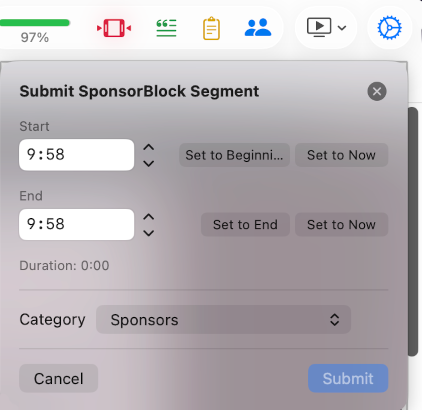
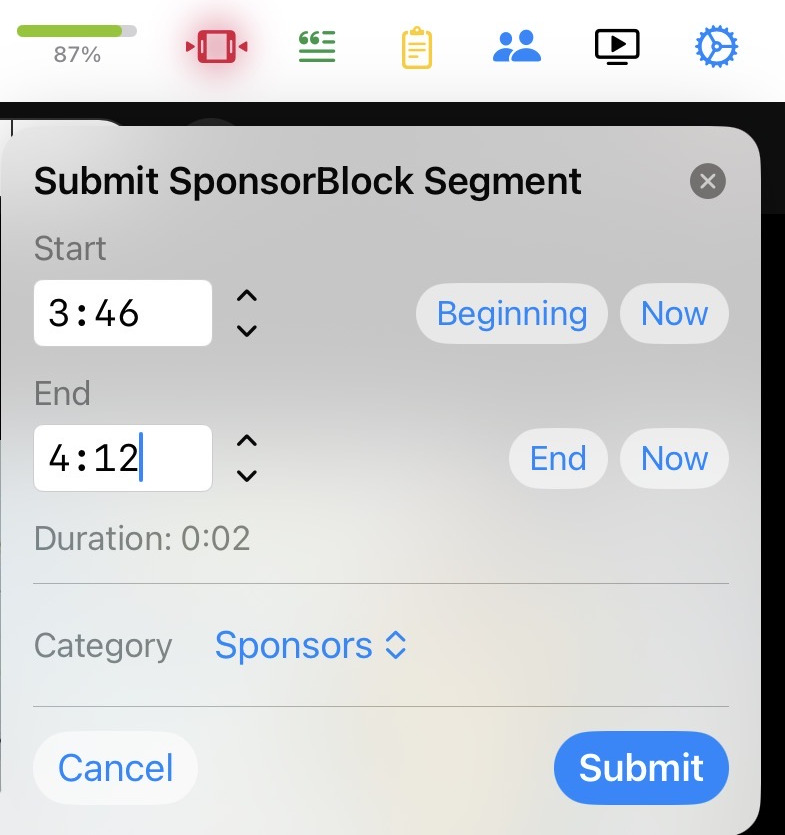
- While watching the video, open the SponsorBlock control — it's in the toolbar on Mac and iPad, or in the tool menu on iPhone.
- Mark the start of the segment: the moment the regular content stops and the sponsor read (or intro, or recap) begins.
- Mark the end: the moment the actual content resumes.
- Choose a category — Sponsor, Intro, Outro, Self-promotion, Interaction reminder, Preview/recap, Non-music section, or Filler.
- Submit. Your segment goes to the community database, and the next person who watches that video skips what you marked.
Etiquette: how to submit well
A segment you submit plays a small role in every later viewer's experience of that video, so a little care goes a long way:
- Mark boundaries precisely. Start the segment at the first moment of the sponsor read, not a few seconds before — cutting into real content is the fastest way to get a segment voted down. When in doubt, err on the side of skipping slightly less.
- Pick the right category. A paid promotion is a Sponsor; a creator plugging their own merch is Self-promotion; "like and subscribe" is an Interaction reminder. Viewers choose which categories to skip, so filing a segment correctly is what makes those choices meaningful.
- Don't mark content you merely dislike. Filler exists for genuine tangents — it's not a tool for trimming opinions or sections you personally find boring in an otherwise on-topic video.
Why it matters
Skipping is the visible half of SponsorBlock; submitting is the half that keeps it alive. Popular videos get marked quickly because many contributors watch them, but the long tail — small channels, niche topics, videos published an hour ago — depends on whoever happens to be watching. If you've ever benefited from a skip on an obscure video, it's because someone treated contribution as part of the deal.
There's also a practical case for contributing on the channels you personally watch most. Nobody knows a channel's rhythm better than a regular viewer — you can tell within a second where the sponsor read starts because you've heard the wind-up a dozen times. That familiarity is exactly what makes for precise, well-categorized segments, and it means the videos you mark are the ones you'll be watching again anyway.
And since Mira runs on iPhone, iPad, and Mac as a single app, you can contribute from whichever device you're watching on. If you haven't set up skipping itself yet, start with our guide to using SponsorBlock on iPhone and iPad — the submit control lives right alongside it.
Things to note
- Being first means watching it once. By definition, you only submit segments that weren't marked — so you sat through that sponsor read. Your submission spares everyone after you, not yourself.
- The community has the final say. Other viewers can vote on your segments, and imprecise or miscategorized ones can be corrected or removed. That's a feature of the system, but it does mean your submission isn't permanent.
- YouTube only. Segments can only be marked on YouTube videos; SponsorBlock doesn't cover other sites you watch in Mira.
Mira is a native video player for iPhone, iPad, Mac, and Apple TV that skips sponsors, intros, and other unwanted segments — with searchable transcripts, AI summaries, and synced watch parties.