The Best Ways to Watch YouTube on a Mac
There are at least four reasonable ways to watch YouTube on a Mac, and most people have only ever tried one of them. This is an honest survey of the options — including the free ones, which are genuinely fine for a lot of viewers — with the trade-offs of each, and a recommendation based on the kind of watching you actually do.
Option 1: the browser tab
The default, and there's nothing wrong with it. It's free and always current. The trade-offs come from the surroundings rather than the site: the tab lives among all your other tabs, the homepage is built to suggest the next video and the one after that, and "I'll just watch one thing" has a way of becoming an evening. If you watch occasionally and close the tab when you're done, the browser does the job.
Option 2: YouTube as a Safari web app
Since macOS Sonoma, Safari can turn any site into a Dock app: open YouTube, choose File → Add to Dock, and you get a separate icon and a window of its own, apart from the rest of your browsing. It costs nothing and takes seconds. It's a tidy middle ground — watching gets its own space without installing anything. What you get inside that window is still the standard YouTube site, so the experience itself doesn't change; only where it lives does.
Option 3: a Safari extension that improves the player
If you'd rather keep watching in Safari but want the player itself to feel better, extensions can do that. Vinegar is the well-known example: a paid Safari extension that swaps the player on YouTube pages for a clean, native one. It's a respected, focused tool, and if your watching lives in the browser it may be all you want. We've written more about that approach — and how it compares with a standalone app — in apps like Vinegar.
Option 4: a dedicated player app
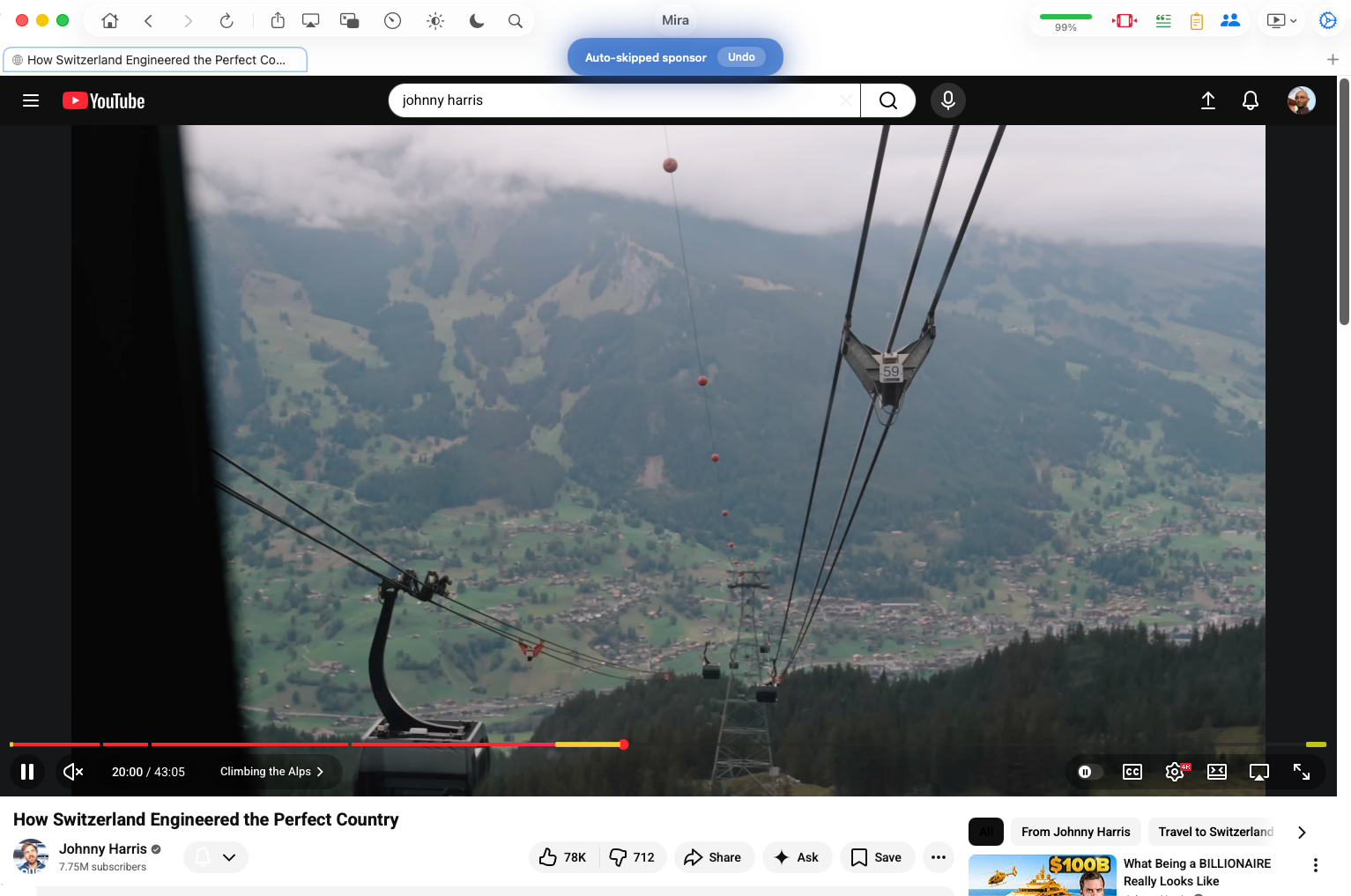
The fourth route is to give watching its own app entirely. Mira opens YouTube — and other video platforms like Netflix, Twitch, and Disney+ — in its own window, with a toolbar that keeps home, search, playback speed, Transcript & AI, Focus Mode, Watch Together, and Settings one click away. It supports tabs too (⌘T for a new tab, ⌘L for the search bar), so several videos or sites can sit side by side.

What a dedicated app brings, concretely:
- SponsorBlock. Mira skips sponsors, intros, and other unwanted segments using community-shared timestamps, with eight categories to choose from and an Undo after every skip. Setup details are in SponsorBlock on Mac.
- Transcripts and AI. Search a video's full transcript and tap any line to jump to that moment; with your own AI key (Claude, OpenAI, or Grok) you can generate summaries and ask follow-up questions.
- Focus Mode. One toggle reduces the homepage to a search bar and hides comments and recommendations on video pages — covered in full in our Focus Mode guide.
- Watch Together. Synced playback with up to 10 people, a shareable 4-character room code, and built-in chat.
- The dailies. Playback speed from 0.25× to 10×, a watchlist that resumes from a saved timestamp, and automatic selection of the highest available resolution up to 4K.
Which should you choose?
- You watch a few videos a week. Stay with the browser tab. Really — it's fine, and it's free.
- You want watching separated from browsing, for free. Make YouTube a Safari web app in the Dock. Two minutes well spent.
- You live in Safari and want a nicer player. A player extension like Vinegar is a tasteful, one-time-purchase route.
- You watch a lot, follow long-form videos, or watch with friends. A dedicated app earns its keep — and Mira is the same app on iPhone and iPad too.
Things to note
- Several headline features are YouTube only. SponsorBlock, transcripts, and Focus Mode apply to YouTube; on other platforms Mira offers the cross-platform tools like speed, Watch Together, and the watchlist.
- A dedicated app is one more thing. Another window, another icon in the Dock. If your current habits are already working, switching carries its own small cost.
Mira is a native video player for iPhone, iPad, Mac, and Apple TV that skips sponsors, intros, and other unwanted segments — with searchable transcripts, AI summaries, and synced watch parties.