SponsorBlock on Mac: Skip Sponsors, Intros, and Recaps Automatically
Sponsor reads have settled into a familiar rhythm: a cold open, a quick "before we get started," ninety seconds about a mattress or a meal kit, and then — finally — the video you actually clicked on. SponsorBlock exists so you don't have to scrub past all of that by hand. It's a community project in which viewers mark the exact start and end of sponsor reads, intros, recaps, and other skippable segments, and everyone who watches after them jumps straight past those parts automatically.
In desktop browsers, SponsorBlock usually arrives as an extension you install and maintain per browser. On the Mac there's another route: Mira, a native macOS video player with SponsorBlock support built in. There's no extension to install and nothing to keep updated — it's a toggle in Settings.
What SponsorBlock can skip
SponsorBlock organizes segments into eight categories — Sponsor, Intro, Outro, Self-promotion, Interaction reminders, Preview/recap, Non-music sections, and Filler — and you choose exactly which of them get skipped. If the project itself is new to you, our explainer on what SponsorBlock is and how the community data works covers the background. The short version: the timestamps come from other viewers who marked them by hand, which is why skips tend to land precisely where the unwanted segment starts and ends.
What it looks like in practice
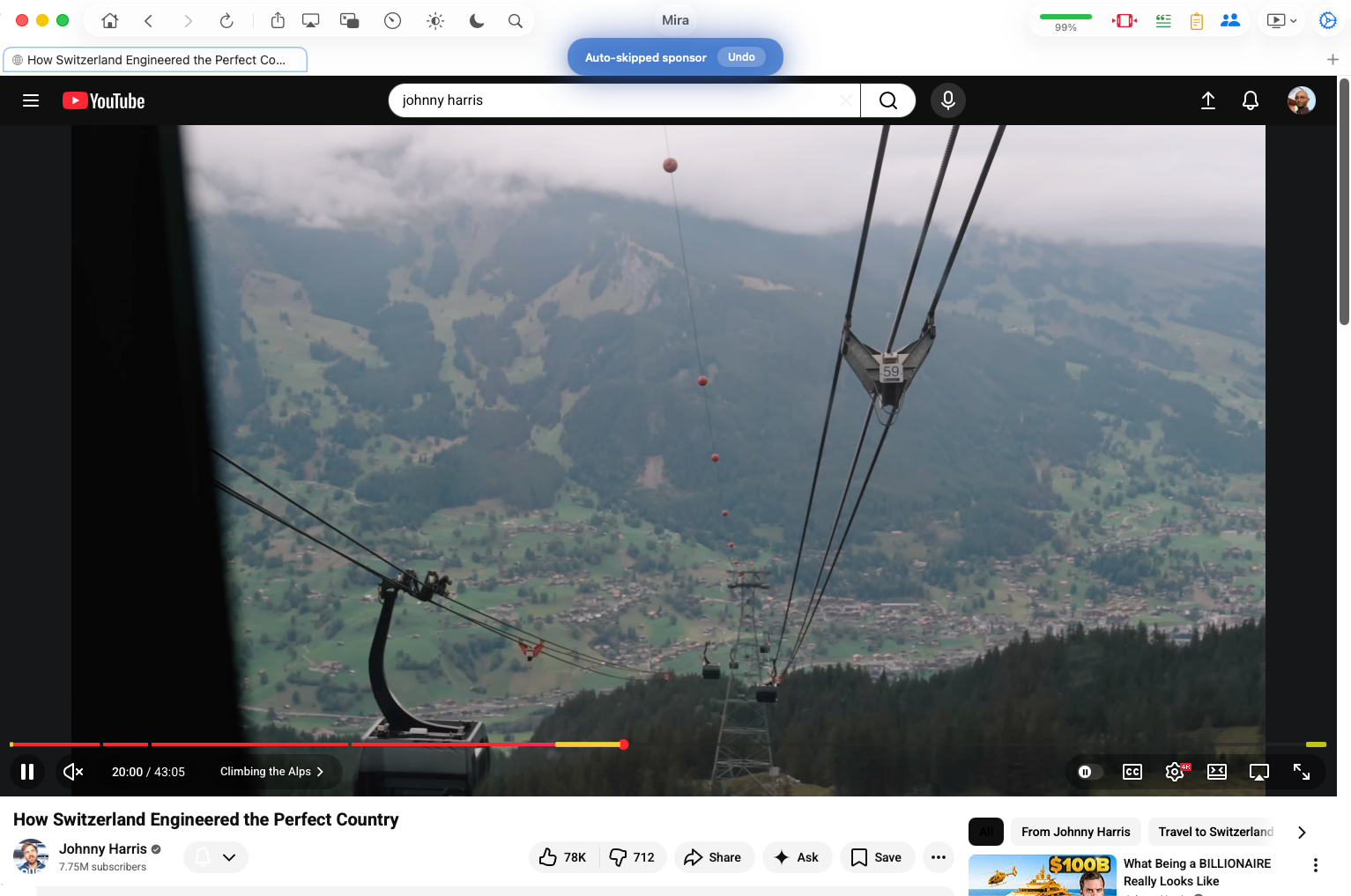
Once it's on, there's nothing to do. Play a YouTube video, and when a marked segment arrives, playback hops over it and a small toast tells you what was skipped. If you actually wanted to see that part — some sponsor reads are genuinely entertaining — click Undo on the toast and the video jumps back to where the segment began.
Turning it on
- Download Mira from the Mac App Store (it requires macOS 14 or later). SponsorBlock is offered right in the first-launch setup with recommended options pre-selected — if you accepted the defaults, it's already working.
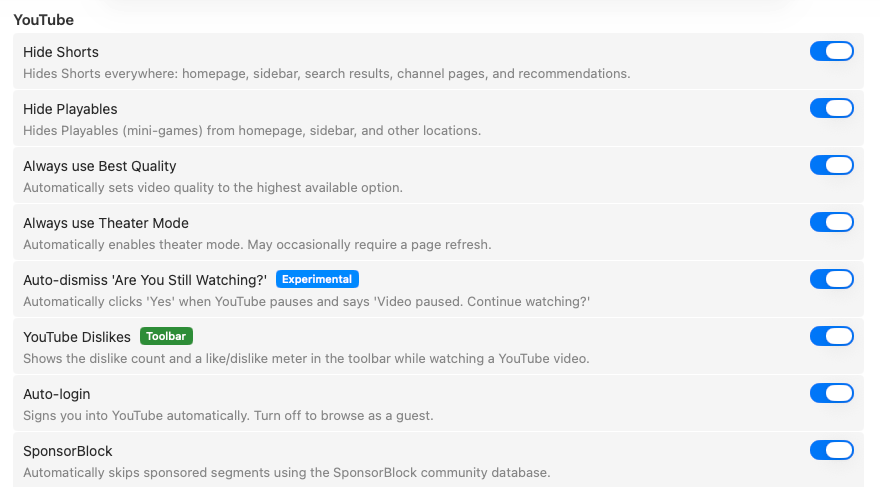
- To adjust it later, open Settings → General → SponsorBlock. Settings is the gear icon in the toolbar, or press ⌘,.
- Switch SponsorBlock on, then choose which categories to skip. Sponsor, Intro, and Preview/Recap are common starting points; Filler is the most aggressive category and is usually best left off until you've lived with the rest.
- Optionally enable Color-Code by Category. Each segment type then appears in its own color on the video's timeline, so you can see what's coming before it gets skipped.
Why build it into the player?
A browser extension only works inside the browser it's installed in. If you'd rather keep video in its own dedicated app — separate from your work tabs, with playback controls designed around watching — an extension can't follow you there. In Mira, SponsorBlock is part of the player itself, so it applies in every tab you open (the Mac app supports tabs: ⌘T for a new tab, ⌘W to close one). It also sits alongside the rest of Mira's viewing tools, like searchable transcripts and Focus Mode, instead of being one more extension to manage.
Contributing segments back
SponsorBlock only works because viewers mark segments for each other. When you hit a sponsor read that nobody has marked yet, you can be the one who fixes that: open the SponsorBlock control in the toolbar while watching, mark the start and end, choose a category, and submit. We've written a full guide to submitting your own SponsorBlock segments, including a few etiquette notes on marking boundaries precisely.
The same setup on iPhone and iPad
Mira is a single universal app, so SponsorBlock works the same way on your other devices — with nothing to install there either. If you also watch on a phone or tablet, see how to use SponsorBlock on iPhone and iPad — it’s the same app on iPhone, iPad, and Mac.
Things to note
- YouTube only. SponsorBlock's community data covers YouTube videos; it doesn't apply to other sites you watch in Mira.
- Coverage depends on the community. A video uploaded an hour ago, or a very niche one, may not have segments marked yet — that's exactly what the submit feature is for.
- Boundaries are human-submitted. Once in a while a skip lands a second early or late. The Undo button on the toast exists for exactly that case.
Mira is a native video player for iPhone, iPad, Mac, and Apple TV that skips sponsors, intros, and other unwanted segments — with searchable transcripts, AI summaries, and synced watch parties.