Queue Videos to Watch Next
It happens two minutes into browsing: you came for one video and now you've found three. A follow-up, part two, the interview everyone keeps mentioning. Your options have never been great — open things in a flurry and lose track, try to remember titles (you won't), or bury them in Watch Later next to two hundred videos from 2023.
The Queue is the simpler idea: line them up now, and Mira plays them one after another. When a video ends, the next one starts on its own. No juggling, no "what was that other one called," no wall of thumbnails deciding your evening for you — just the videos you picked, in the order you picked them.
Adding videos
Adding to the queue is designed to be quicker than deciding whether to watch now:
- On iPhone and iPad, press and hold any video thumbnail for about half a second — on the home feed, in search results, on a channel page, or in the related videos next to the player.
- On Mac, click and hold a thumbnail the same way — or right-click it and choose Add to Queue.
- On Apple TV, hold down the Select button on any video tile and choose Add to Queue — it works in search results too.
You'll see an Added to Queue confirmation each time, and the video joins the end of the line. Each video can only be queued once — try again and Mira just tells you it's Already in Queue.

They play themselves
This is the part that makes a queue a queue: when a video ends, the next one begins. Cooking with a lineup of recipe videos, working through a lecture series, letting music videos run during dinner — you set it up once and stop touching your device.
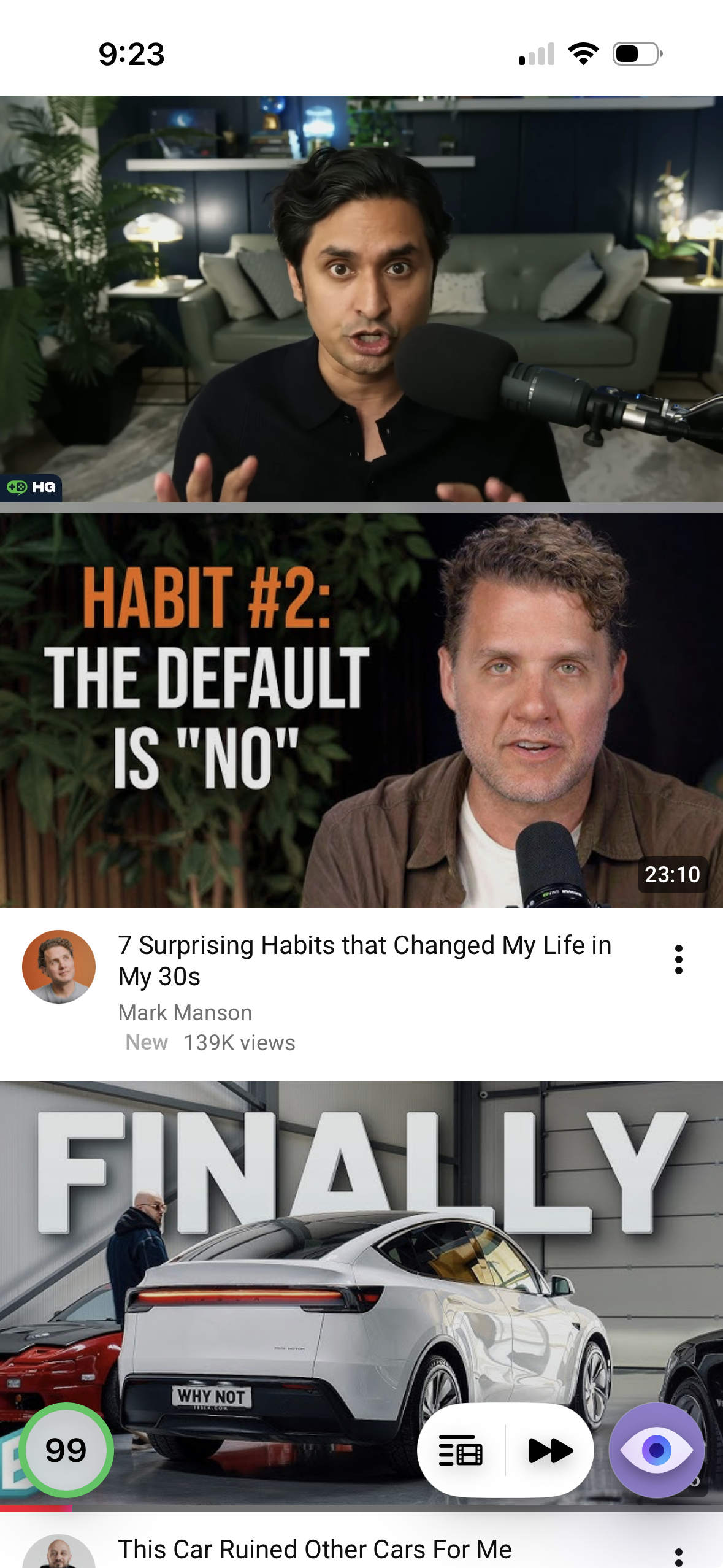
If something in the lineup turns out to be skippable, skipping is one press: a Next control appears while you're watching a queued video — beside the floating Queue button on iPhone, in the toolbar on iPad and Mac. On Apple TV, an Up next card appears when a video ends and the next one starts a few seconds later; press Menu if you'd rather stop there.
On iPhone, auto-advance keeps working with the app in the background — if you're listening with the screen off or while using another app, the next queued video starts on its own.
Managing the lineup
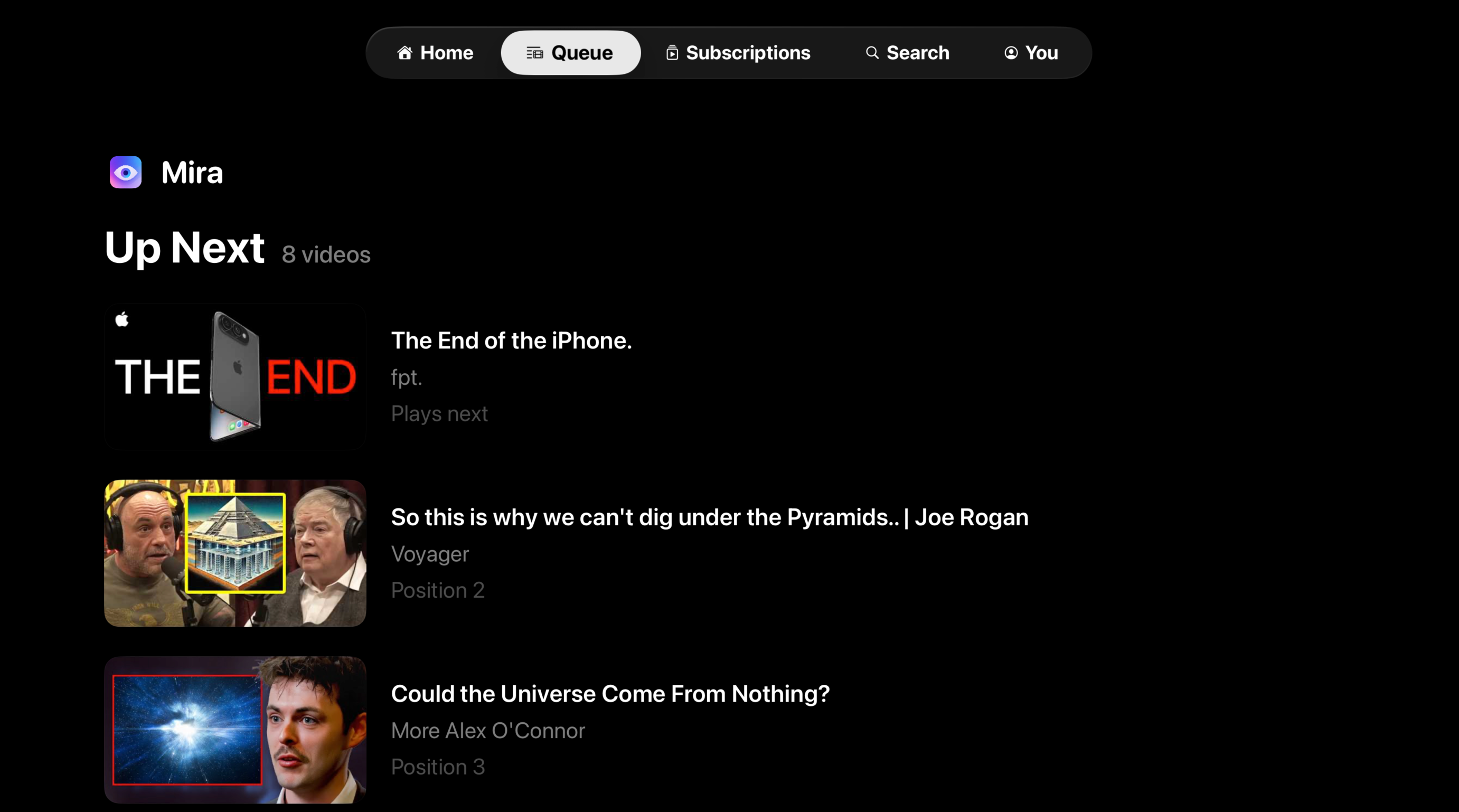
As soon as the queue has videos in it, it's one tap away: a floating Queue button on iPhone, a Queue button in the toolbar on iPad and Mac, and on Apple TV a whole Queue tab that appears right between Home and Subscriptions. Inside, the top video is always what plays next. Tap any video to jump to it immediately, reorder or remove the ones you've changed your mind about, or clear the whole thing and start fresh.
Videos leave the queue as they play, so the list always shows what's still ahead — when it runs empty, the buttons quietly disappear until you add something new.
One lineup, every device
The queue syncs through iCloud, so it's one lineup, not four. Queue up videos from your Mac during the workday and they're waiting on your iPhone that evening. Add something from the couch on Apple TV and it shows up on every other device too — the TV shares the same queue through your iPhone.
If you're wondering how this relates to Mira's Watchlist: they answer different questions. The Queue is for the next hour — things you're watching tonight, in order, hands-free. The Watchlist is for someday — the long-term shelf of things you mean to get to. Videos you queue don't clutter your Watchlist, and vice versa.
Things to note
- YouTube only. The Queue works with regular YouTube videos (not Shorts); it doesn't apply to the other platforms you watch in Mira.
- Playlists take priority. If the video you're watching is part of a YouTube playlist, the playlist's own next video plays — the queue waits its turn.
- Stepping out is fine. The queue advances only while you're playing from it. If a recommended video pulls you away mid-lineup, Mira follows your lead — when it ends, the queue doesn't cut in. Your lineup just waits for you to come back.
- It pauses during watch parties. In a Watch Together session, the queue won't auto-advance — starting a new video on your own would pull you out of sync with everyone else.
- Forward only. Videos leave the queue as they play. If you skip ahead by accident, the video you were watching is in your YouTube watch history.
Mira is a native video player for iPhone, iPad, Mac, and Apple TV that skips sponsors, intros, and other unwanted segments — with searchable transcripts, AI summaries, and synced watch parties.