How to Watch YouTube on Your Apple TV with Mira
For a long time the biggest screen in the house was the one place Mira didn't run. You could get it there — Screen Mirroring still works — but mirroring is a workaround, not an app. You browse on a phone-shaped screen while the television watches over your shoulder.
Mira now has a real Apple TV app. You browse with the Siri Remote, on the TV, in an interface built for it. Your iPhone stays in the loop — it's what feeds the video to the television — but it does that quietly from the arm of the couch.
What you need
- Mira on your Apple TV, from the App Store. It's part of the same Mira you already have.
- Mira on an iPhone running iOS 26 or later. The phone does the heavy lifting, and the technology behind it only exists on iOS 26 and up.
- Both devices on the same Wi‑Fi network. That's how they find each other.
Worth being clear about the arrangement: your iPhone is the source, so Mira needs to stay open on the casting screen while you watch. Mira keeps the phone from sleeping on its own, but locking it or switching apps pauses the TV, which shows a note asking you to come back — return to Mira and playback resumes on the frame you left. Keep the phone plugged in for long sessions.
Getting connected
No codes to type, no PIN to read off the screen, no accounts to link. The two apps find each other on your network.
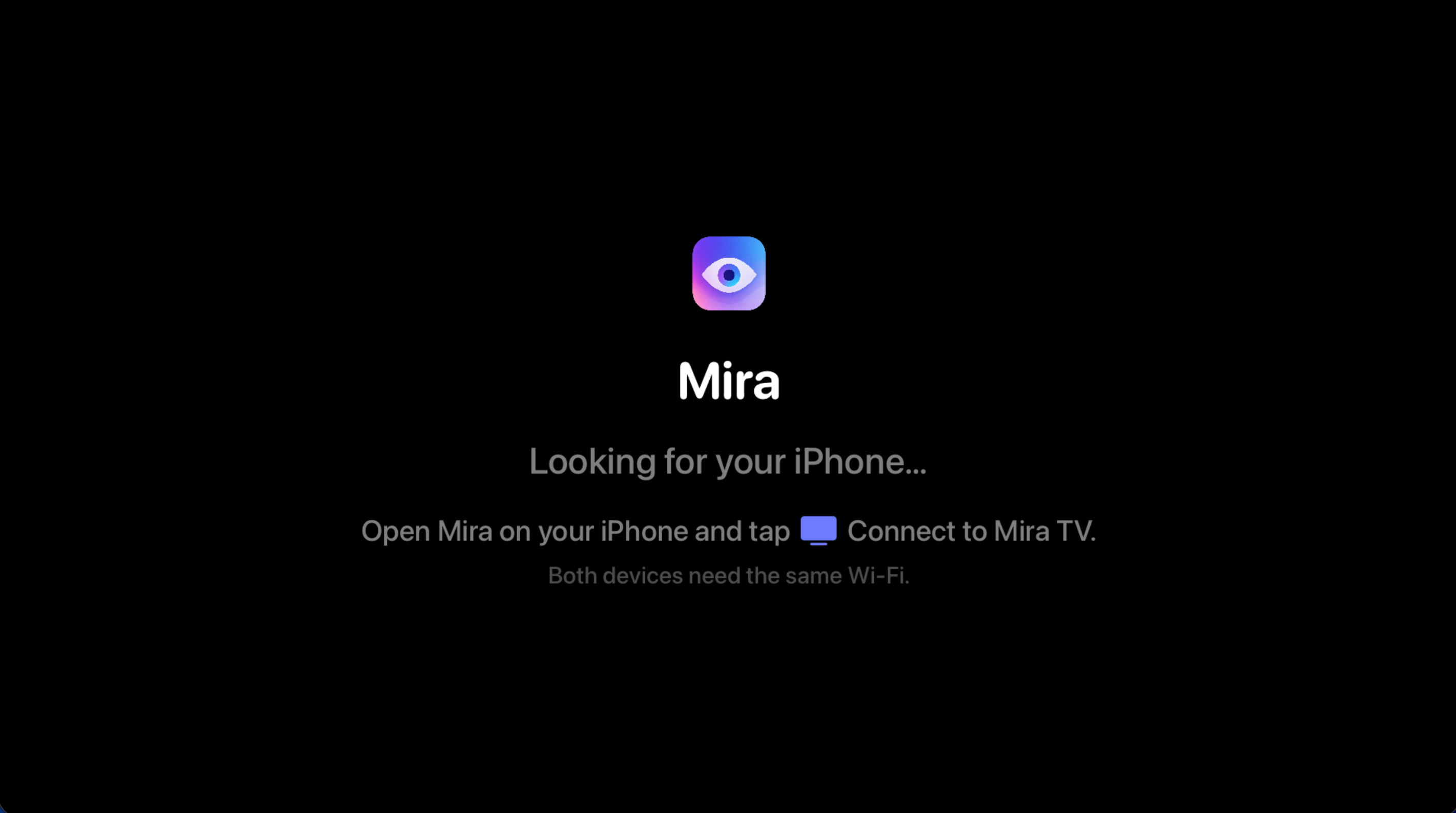
- Install Mira on your Apple TV and open it. It shows "Looking for your iPhone…".
- Open Mira on your iPhone and tap Connect to Mira TV in the tool menu.
- Approve the local network prompt if your iPhone asks. You'll only see it once.
That's the setup. The TV connects on its own; next time, opening both apps is enough.
Four tabs to browse
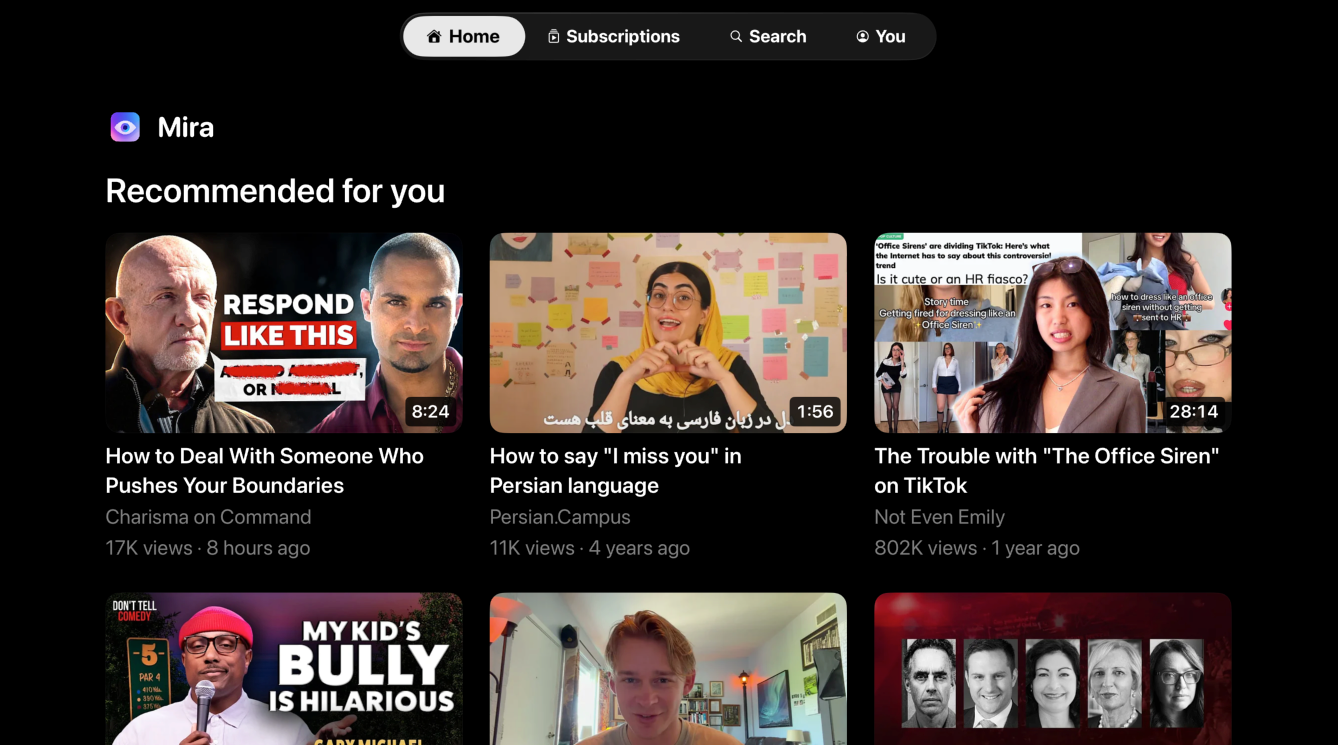
Along the top of the screen are four tabs:
- Home — a grid of recommendations picked for you by YouTube.
- Subscriptions — the newest videos from the channels you follow, newest first.
- Search — covered below.
- You — your playlists and your watch history.
Pick a video and it starts playing on the TV. On Home and Subscriptions, clicking the tab you're already on refreshes the grid and jumps back to the top — handy when the recommendations have gone stale halfway through an evening.
All of this is personalized because your iPhone is signed in, not because you signed in on the television. There's no sign-in screen on the Apple TV and no password to peck out with a remote — sign in to YouTube in Mira on your phone and your recommendations, subscriptions, history, and playlists appear on the TV.
Search that keeps up with you
Search uses the Apple TV's own search keyboard, so dictation works — say what you're looking for instead of hunting letters one at a time. Results appear live as you type or speak, with no search button to press.
Channels come back as a row of avatars across the top with their subscriber counts; videos and playlists fill the grid below. Open a channel for its videos, newest first, or a playlist for its contents — and if you start a video from inside a playlist, the next one queues up when it ends, with a few seconds to press Menu if you'd rather stop there.
Using the remote
Playback is built around the Siri Remote rather than a touchscreen shrunk onto a television.
- Press Select to bring up the on-screen display: the title, where you are, how long is left, and a row of quick actions. It fades on its own after a few seconds.
- Click the left or right edge of the clickpad to jump back or ahead ten seconds.
- Swipe to scrub — the further the video, the more ground a swipe covers. For fine control, circle the outer ring of the clickpad and you get roughly a minute per revolution.
- Scrubbing previews where you'd land without moving the video. Press Select or Play/Pause to commit, or Menu to change your mind and stay where you were.
Sponsors skip themselves
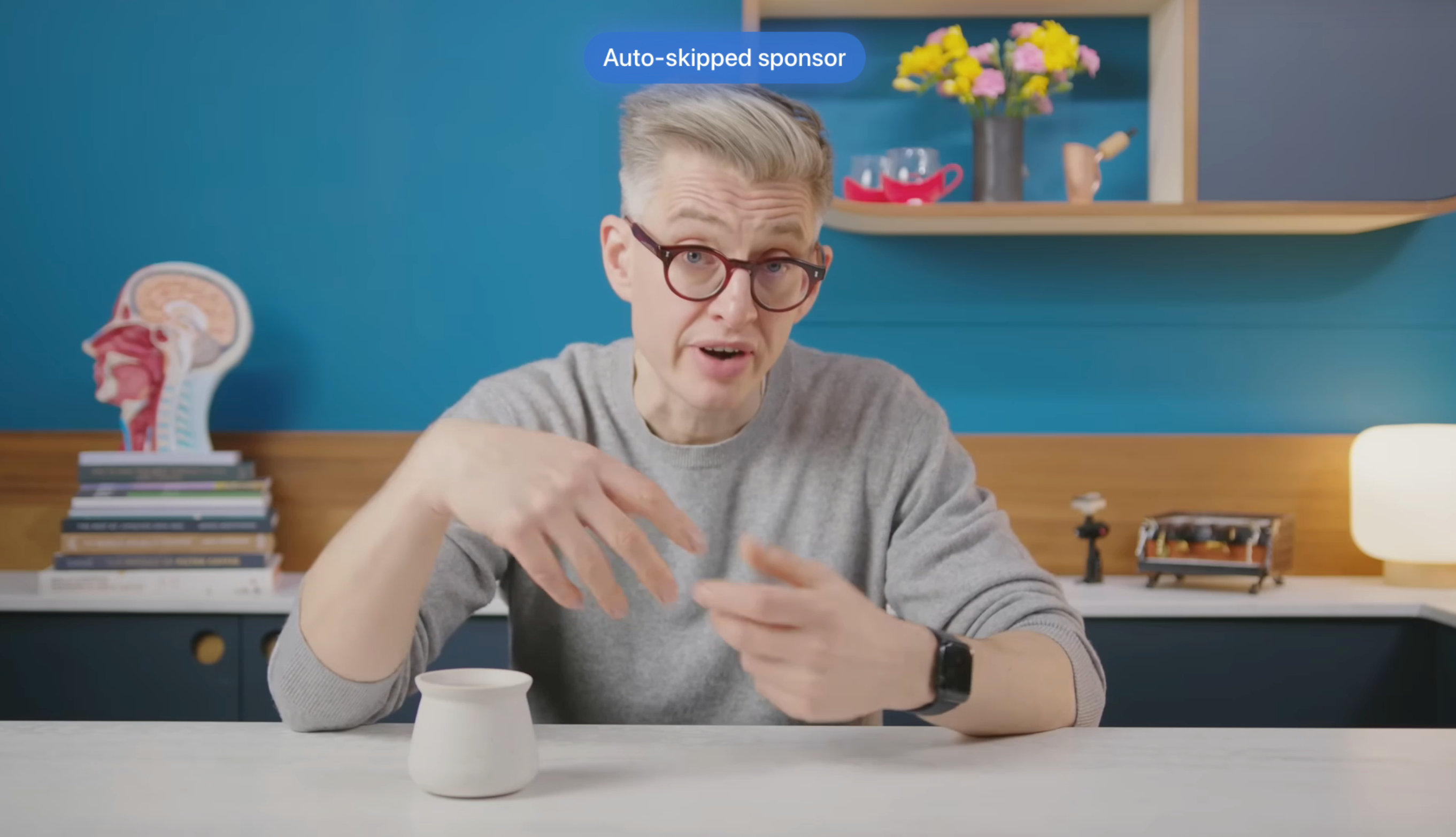
The thing people miss most on a television is the sponsor read. On the Apple TV, Mira skips them the same way it does everywhere else: community-submitted segments, skipped automatically, with a small "Auto-skipped" note so you know why the video jumped. If you haven't run into it before, here's how SponsorBlock works.
You don't configure any of it on the TV. Whatever categories you've chosen on your iPhone — sponsors only, or intros and recaps too — carry straight over, and the sensible defaults are on if you've never touched them. The eight categories are explained here. You'll also see segments coming: the TV draws them onto the progress bar as colored blocks.
Subtitles
Subtitles toggle from the on-screen display — press Select, move down to the Subtitles chip, and switch them on. Your choice sticks from video to video and between launches, so turning them on once is usually the last time you think about it. If a particular video has no subtitle track, Mira tells you rather than leaving you wondering.
Transcripts and AI, on the television
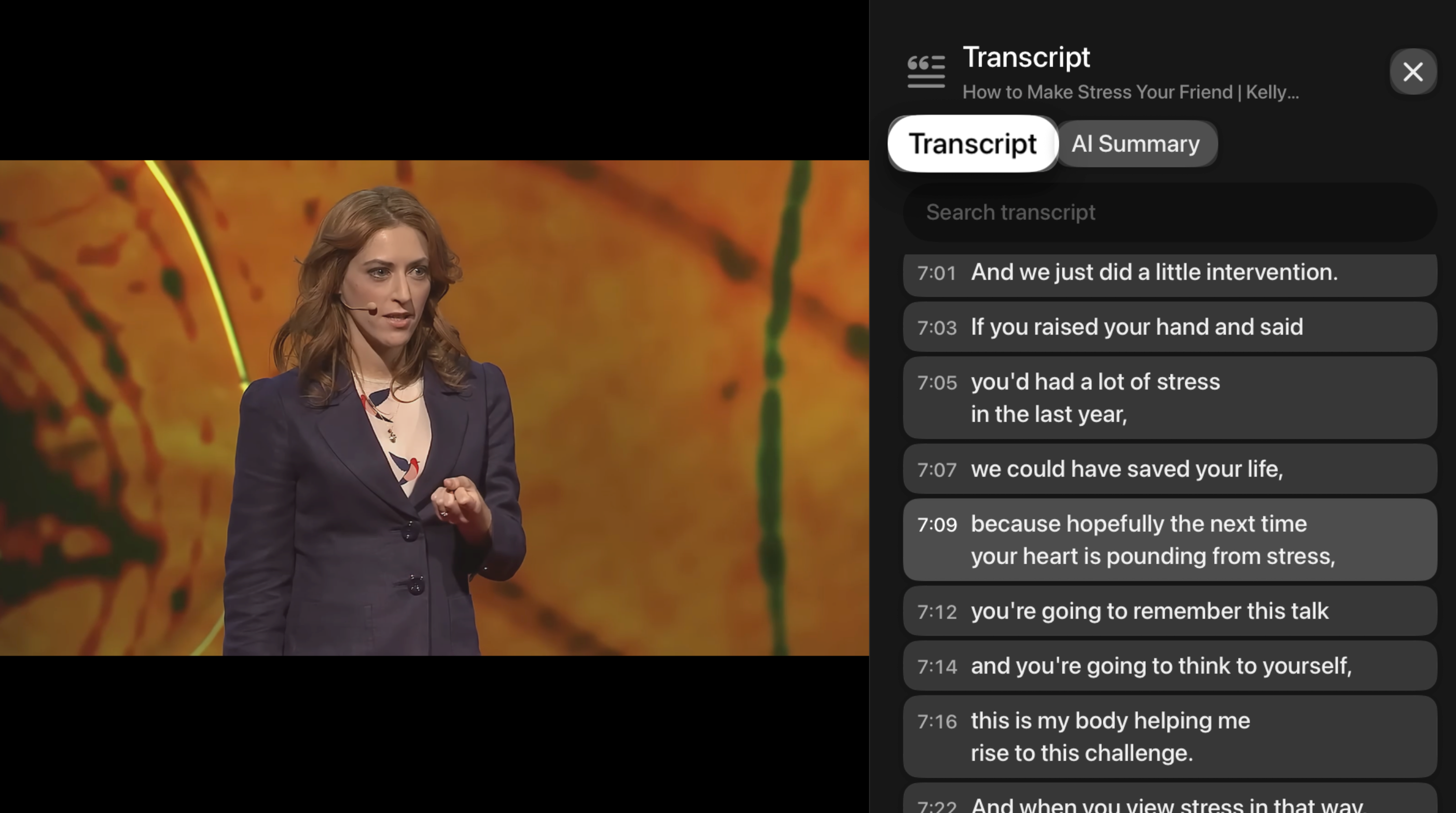
Open the Transcript & AI chip from the on-screen display and a panel slides in beside the video. Nothing gets covered or paused — the video shrinks over to make room and keeps playing while you read. The transcript is the full timestamped text: it follows along and keeps the current line centered, you can select any line to jump to that moment, and there's a search field for finding the one thing you actually came for in a two-hour video.
The same panel has an AI tab. It summarizes the video on arrival and offers one-press actions for key takeaways, an outline, key quotes and terms, a fifteen-second summary, a section-by-section breakdown, a plain-language explanation, and a fact-check of the claims made. You can also just type a question and get an answer grounded in what the video said.
The AI features run on your own API key — Claude, OpenAI, or Grok — set up once in Mira on your iPhone. The key never leaves the phone; the Apple TV never talks to an AI provider directly. Setting up a key takes a few minutes, and asking questions about a video is worth reading if you've only used one-shot summaries. Transcripts themselves need no key at all.
Like, subscribe, and save
The on-screen display carries the things you'd otherwise reach for your phone to do: like a video, subscribe to the channel (with a confirmation before unsubscribing, so a stray click doesn't cost you a subscription), or save the video to any of your playlists, Watch Later included. Selecting the channel chip opens that channel's page without losing your place. And it all counts normally — what you watch on the Apple TV lands in your YouTube history, so recommendations keep learning and you can finish a video later on your phone.
Things to note
- The Apple TV app is YouTube. Other platforms you've added in Mira live on your iPhone, iPad, and Mac; to get one of those onto the television, Screen Mirroring is still the way.
- Your iPhone has to stay awake in Mira. It's the source of the picture. Locking the phone or switching apps pauses the TV until you come back.
- iOS 26 or later is required on the iPhone — the audio side of the pipeline doesn't exist on earlier versions.
- Settings live on your iPhone. Sponsor categories, your AI provider and key, and the rest are configured on the phone and carry over. Subtitles on or off — with no size, font, or language picker yet — is the one thing you set on the TV itself.
- One iPhone at a time. If more than one phone on your network is on Mira's casting screen, the Apple TV connects to the first one it finds.
Mira is a native video player for iPhone, iPad, Mac, and Apple TV that skips sponsors, intros, and other unwanted segments — with searchable transcripts, AI summaries, and synced watch parties.